You use a computer every day, probably without thinking about it. Your phone, your laptop, and even your smart TV all follow the same basic ideas. In this guide, you will learn what a computer is, what it is made of, and how its parts cooperate. By the end, terms like CPU, RAM, and operating system will feel familiar instead of confusing.
What Is a Computer and How Does It Work?
A computer is a machine that takes in information, follows instructions to process it, and gives you a result. Think of a kitchen. Ingredients go in, a cook follows a recipe, and a finished dish comes out. For example, when you type a question into a search bar and press Enter, the computer reads your words, finds matching pages, and shows them on the screen.
Computers are not only laptops and desktops. Phones, ATMs, game consoles, and many car dashboards contain small computers too. Many household gadgets, such as microwaves, use an embedded computer, which is a tiny processor built into a device to control one specific job. As a result, you probably own far more computers than you realize.
Every computer, big or small, repeats the same four jobs:
- Input: you give the computer information (typing, clicking, speaking).
- Processing: the computer works on that information.
- Storage: the computer keeps information for now or for later.
- Output: the computer shows or plays the result.
Keep these four jobs in mind, because the rest of this guide builds on them. Next, let’s follow one action from start to finish.
How a Computer Works Step by Step: Input, Processing, Memory, Output
Let’s say you press the letter “A” on your keyboard. The keyboard turns that key press into an electrical signal and sends it to the computer. In other words, the input step is simply a physical action becoming data. Because computers only understand signals, everything you do must be converted this way first.
Here is the full journey, in order:
- You press a key or click a button (input).
- The signal travels to the processor.
- The processor follows instructions to decide what to do.
- Data is held briefly in memory while the work happens.
- The result is sent to the screen, speaker, or printer (output).
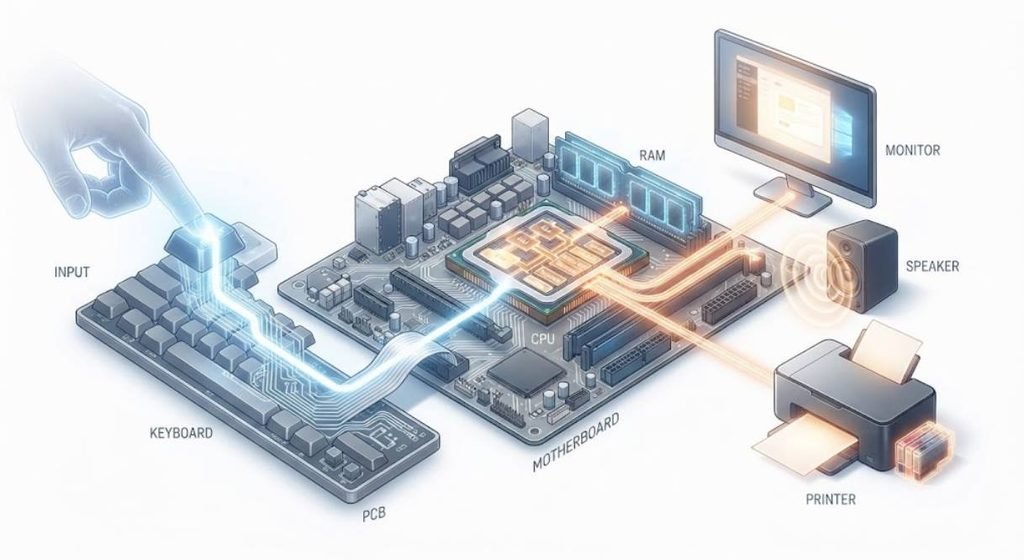
After that, the computer waits for your next action, and the cycle starts again. This loop runs millions of times per second, which is why a computer feels instant. If you want a visual for this section, add a simple flow diagram with four boxes labeled Input, Processing, Memory, and Output, connected by arrows.
Quick tip: if you ever feel lost with a new tech term, ask yourself which of the four jobs it belongs to. That small habit makes almost any computer concept easier to place. With the big picture clear, let’s look at the physical parts that do the work.
What Is Computer Hardware? (CPU, memory, storage, input/output devices)

Hardware means any part of a computer you can physically touch. The most important piece is the CPU, or Central Processing Unit, which is the chip that carries out instructions. You can picture it as the head chef of the kitchen, reading each step of the recipe and deciding what happens next. Without it, the other parts would have nothing to follow.
Other hardware supports the CPU. Memory holds data the computer is using right now, and storage keeps your files for the long term. Input devices send information in, while output devices send results out. Meanwhile, the motherboard, the large circuit board inside the case, connects all of these parts so they can talk to each other.
Here are the main hardware groups:
- Processor (CPU): runs instructions.
- Memory (RAM): short-term workspace.
- Storage (SSD or HDD): long-term file keeping.
- Input devices: keyboard, mouse, microphone, touchscreen.
- Output devices: monitor, speakers, printer.
For a deeper technical definition, see this overview of computer hardware on Wikipedia. Also, a safety tip: always switch off and unplug a desktop computer before touching anything inside it. Hardware is only half the story, though, so let’s move on to the part you cannot touch.
What Is Computer Software? (operating systems, applications, drivers)
Software is the set of instructions that tells hardware what to do. Unlike hardware, you cannot hold it in your hand. A good analogy is sheet music: the piano is the hardware, and the written notes are the software that tell it which keys to play. Without software, even the most expensive computer would just sit there .
Software comes in three common types. An operating system (OS), such as Windows, macOS, Android, or iOS, manages the whole computer and gives you a place to open things . Applications, often called apps, are programs built for specific tasks, like a web browser or a word processor. Finally, a driver is a small program that acts as a translator between the OS and a piece of hardware, such as a printer . For instance, when you plug in a new printer and Windows asks to install something, that is usually a driver.
Think of the operating system as a restaurant manager. It takes your order (from the app), tells the kitchen (the hardware) what to prepare, and makes sure nothing collides. If you want more beginner-friendly explanations like this, check out our guide on what an operating system does. So far, hardware and software might sound like two separate worlds, but the differences between them are easier to see side by side.
Hardware vs. Software: What’s the Difference?
The simplest difference is that hardware is physical and software is not. However, that is only the starting point. Hardware wears out over time, while software does not wear out but can develop bugs, which are mistakes in the code. In short, you repair hardware by replacing parts, and you fix software by updating it.
| Feature | Hardware | Software |
|---|---|---|
| What it is | Physical parts you can touch | Instructions and programs |
| Examples | CPU, keyboard, monitor | Windows, Chrome, Photoshop |
| How it changes | Replaced or upgraded | Updated or reinstalled |
| What can go wrong | Breaks, overheats, wears out | Bugs, crashes, security flaws |
| Can it work alone? | No, it needs software | No, it needs hardware |
The last row of the table matters most. Neither one is useful by itself, because hardware without software does nothing, and software without hardware has nowhere to run. Therefore, a computer is really a partnership between the two. Let’s look at how that partnership works in practice.
How Do Hardware and Software Work Together?
Imagine you double-click a photo on your laptop. The app (software) tells the operating system (software) that you want to open that file. Then the OS asks the storage drive (hardware) to find the photo, loads it into memory, and sends it to the CPU and screen. As a result, the picture appears in less than a second, although dozens of steps happened behind the scenes.
Software gives the orders, and hardware does the physical work. If either side fails, you notice it right away. For example, a frozen app is often a software problem, while a laptop that will not turn on may point to a hardware problem. Knowing this difference helps you decide whether to restart an app or contact a repair shop.
Here is a quick way to separate the two when something goes wrong:
- If only one app misbehaves, suspect software.
- If everything is slow or noisy, check the hardware.
- If the problem appears after an update, suspect software.
- If the problem appears after a drop or spill, suspect hardware.
Because every action you take depends on this teamwork, it helps to understand the language computers use to pass information around. That language is binary.
How Computers Use Binary and Data (bits, bytes, encoding)
Computers store everything as binary, a number system that uses only two digits: 0 and 1. Each single 0 or 1 is called a bit, short for binary digit. You can think of a bit as a light switch that is either off (0) or on (1). Although that sounds limited, billions of switches working together can represent text, photos, music, and video.
Bits are grouped to be more useful. A group of 8 bits is called a byte, and one byte can store one basic character, such as a letter. For example, under the ASCII standard (American Standard Code for Information Interchange, a table that matches characters to numbers), the capital letter “A” is stored as 01000001. You can read more about the unit in this explanation of the byte.

Encoding is the rule that turns real-world things into bits. Colors work the same way: many screens use 24 bits per pixel, which allows over 16 million possible colors, according to the true color overview. So when you take a photo, your phone is really saving a long list of numbers. In practice, this is why bigger photos and longer videos need more storage space. Speaking of storage, let’s see where all those bits actually live.
How Does a Computer Store Memory? (RAM vs. storage)
Computers use two main kinds of memory, and beginners often mix them up. RAM (Random Access Memory) is the short-term workspace where the computer keeps whatever you are using right now. Storage is the long-term space where files stay even when the power is off. A helpful analogy is a desk and a filing cabinet: the desk holds what you are working on, and the cabinet holds everything else.
RAM is volatile, which means it forgets everything when the power goes off. That is why an unsaved document disappears if your computer shuts down suddenly. Storage is non-volatile, so your saved files remain safe. Therefore, saving your work simply means copying it from the desk into the filing cabinet.
| Feature | RAM | Storage (SSD or HDD) |
|---|---|---|
| Job | Holds data in use right now | Keeps files long term |
| Speed | Very fast | Slower |
| Keeps data without power? | No | Yes |
| Typical size | Smaller | Larger |
An SSD (Solid State Drive) has no moving parts and is generally faster, while an HDD (Hard Disk Drive) uses spinning disks and is often cheaper per gigabyte. Quick tip: if your computer slows down when many tabs are open, more RAM often helps. Now that you know the parts, let’s name a few real ones.
Hardware and Software Examples
Seeing real examples makes the ideas stick. Most people already use dozens of both every day without labeling them. Here is a simple table you can bookmark for reference.
| Category | Examples | What it does |
|---|---|---|
| Input hardware | Keyboard, mouse, webcam | Sends information in |
| Output hardware | Monitor, speakers, printer | Shows or plays results |
| Internal hardware | CPU, RAM, SSD | Processes and stores data |
| System software | Windows, macOS, Android | Manages the computer |
| Application software | Chrome, Microsoft Word, Spotify | Helps you do tasks |
Try this on your own device. Look at your phone and name five hardware items, such as the screen, battery, camera, speaker, and microphone. Then name five software items, such as the OS, a browser, a messaging app, a maps app, and a music app. If you want a ready-made exercise, copy this prompt into any AI chat tool: “Give me a quiz that asks me to sort ten items into hardware or software, and explain each answer in one sentence.”
This small exercise builds the habit of seeing both layers in everything you use. Next, it helps to look back, because today’s computers started as very different machines.
How Did the First Computers Work?
Early computers were mechanical or electrical giants. In the 1830s, Charles Babbage designed the Analytical Engine, a machine that used gears and punched cards, and many historians consider it the first design for a general-purpose computer. Ada Lovelace later wrote notes for it that are often described as the first published computer program. You can read more about the Analytical Engine if you are curious.
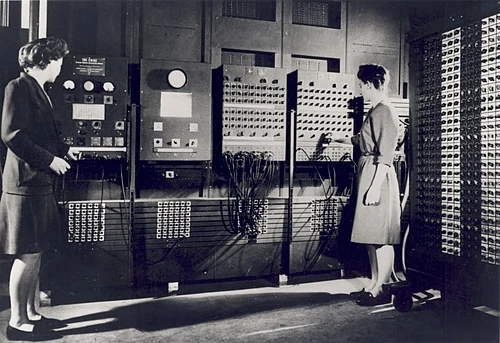
Later, electronic machines arrived. ENIAC (Electronic Numerical Integrator and Computer), finished in 1945, used roughly 18,000 vacuum tubes, which were glass switches that controlled electricity, and it filled a large room, according to the ENIAC overview. In comparison, the phone in your pocket is many times more powerful. The big change came from the transistor, a tiny solid switch that replaced bulky vacuum tubes.
Here is a simple timeline:
- 1830s: the Analytical Engine is designed with gears and punched cards.
- 1940s: room-sized electronic computers appear.
- Late 1940s onward: transistors replace vacuum tubes.
- 1970s and 1980s: personal computers reach homes and offices.
- Today: powerful computers fit in a pocket. (Modern smartphone is technically a small, powerful computer)
Although the machines changed dramatically, the core idea stayed the same: input, processing, storage, and output. For a related read, see our short history of personal computers. Finally, let’s check what you have learned.
Quiz and Key Takeaways
Try these five questions before looking at the answers.
- Which part of a computer is often called its brain?
- Is an operating system hardware or software?
- How many bits are in a byte?
- Which one loses its data when the power goes off: RAM or storage?
- What small program helps the OS talk to a printer?
Answers: 1) The CPU. 2) Software. 3) Eight. 4) RAM. 5) A driver.
Here are the key takeaways to remember:
- A computer follows four steps: input, processing, storage, and output.
- Hardware is the physical part, and software is the set of instructions.
- Neither works without the other.
- Computers store everything as bits, and 8 bits make a byte.
- RAM is short-term workspace, and storage is long-term keeping.
Overall, computers feel complicated mostly because of their jargon, not their ideas. Once you know the basic building blocks, you can understand almost any new device with confidence. Keep practicing by naming the hardware and software in the gadgets around you, and the concepts will soon feel natural.