How to choose a laptop shouldn’t feel like decoding a spec sheet. This guide walks you through the seven things that actually matter, then shows you exactly what to prioritize whether you’re a student, a gamer, a creator, or a working professional.
The Quick Answer
For most people, a solid laptop has a mid-range processor, 16GB of RAM, a 512GB SSD, a Full HD screen, and real-world battery life of 8 hours or more. Go higher only if your work or games demand it.
Who This Guide Is For
First-time buyers, students heading to college, gamers who also need a daily driver, creators who edit on the go, and professionals who live in meetings and spreadsheets.
Laptops come in more shapes, sizes, and price tags than ever, and the wrong pick can mean slowdowns, a dead battery by lunch, or paying for power you never use. If you’re still deciding whether a laptop is the right device at all, read our laptop vs desktop guide or our overview of the different types of computers first. Respected buying guides from Consumer Reports and Laptop Mag agree on the same core fundamentals, and we’ve built on them below.
Step 1: Define Your Use Case and Budget
Before you compare a single spec, decide what the laptop is for. Retailers like Best Buy split usage into three levels: light use (browsing, email, streaming), average use (documents, spreadsheets, media), and demanding use (heavy multitasking, photo and video editing, gaming). Your level decides how much you should spend, and where.
Software requirements matter just as much. Check the system requirements of the programs you rely on, such as design tools, engineering software, or specific games, because they can rule out entire categories of laptops before price even comes up.
| User Type | Rough Budget Range (USD) | Spend Most On | Safe to Save On |
|---|---|---|---|
| Student | $400 to $900 | Battery life, keyboard, light weight | Graphics card, 4K display |
| Gamer | $900 to $1,800+ | Graphics card, cooling, high-refresh screen | Ultra-thin design, premium materials |
| Creator | $1,000 to $2,000+ | Display accuracy, RAM, storage, processor | RGB lighting, extra gaming features |
| Work and Professional | $600 to $1,500 | Battery, keyboard, webcam, build quality | Dedicated graphics, huge storage |
Good to know: These ranges are rough guides. Prices shift constantly, so use them to set expectations, then check current prices before you buy.
Step 2: Choose the Right Processor (CPU)
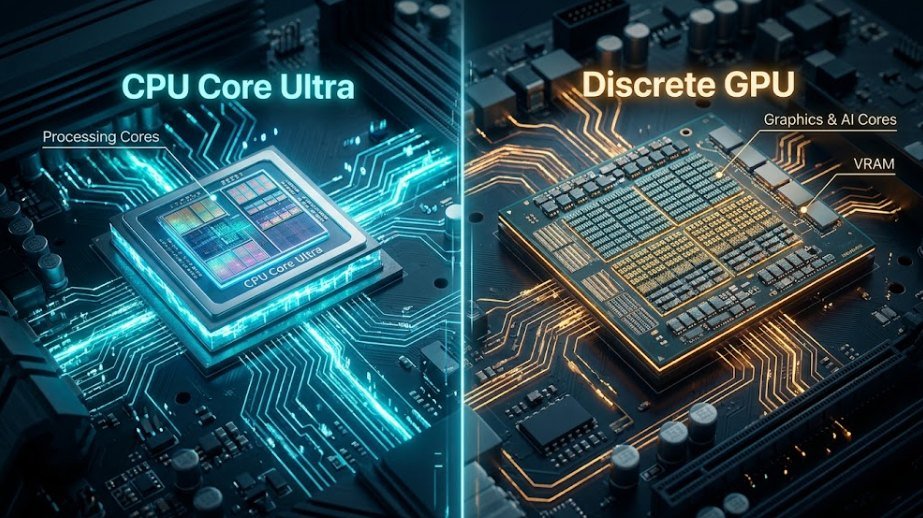
The processor is the laptop’s brain. It decides how quickly apps open, how smoothly you can juggle browser tabs, and how well the machine handles heavy tasks. If you want a deeper look at how it works with the rest of the machine, our guide on how computers work explains it in plain language.
You don’t need to memorize model numbers. Think in tiers: entry-level chips handle basics, mid-range chips (such as Intel Core Ultra 5, AMD Ryzen 5, or Qualcomm Snapdragon X) suit most people, and high-end chips (Core Ultra 7 or 9, Ryzen 7 or 9) are for serious gaming and content creation. Apple MacBooks use Apple’s own M-series chips, where the standard version covers everyday work and the Pro or Max versions target demanding creative tasks.
| If You Mainly… | Windows Laptop Tier | Apple Option |
|---|---|---|
| Browse, stream, write documents | Entry-level or mid-range | Standard M-series chip |
| Multitask all day | Mid-range | Standard M-series chip |
| Game or edit video | High-end | Pro or Max chip |
One caution: processors with an ARM design, like Qualcomm’s Snapdragon X chips, offer excellent battery life and productivity performance but are generally a weaker fit for gaming. For gaming, the graphics card often matters more than the processor, and our CPU vs GPU comparison explains why.
Step 3: How Much RAM Do You Need?
RAM is your laptop’s short-term workspace. The more you have, the more apps and browser tabs you can keep open without slowdowns. Consumer Reports calls 8GB the minimum for a budget laptop and 16GB the sweet spot for most people, and we agree. For a full breakdown, see our guide on how much RAM you need.
| RAM | Best For | Our Take |
|---|---|---|
| 8GB | Light browsing, email, word processing | Acceptable on a tight budget, but expect slowdowns |
| 16GB | Students, professionals, everyday multitasking | The best value for most buyers |
| 32GB or more | Serious gaming, video editing, programming | Worth it only if your work demands it |
Check before you buy: Many thin laptops have RAM soldered to the board, so you can’t upgrade it later. If you can’t afford 16GB today, make sure the model lets you add more.

Step 4: How Much Storage Do You Need? (SSD vs HDD)
Storage is where your files, apps, and operating system live. Today, almost every laptop should use a solid-state drive (SSD). SSDs boot in seconds, open apps quickly, have no moving parts, and run silently. Be careful with very cheap laptops that use eMMC storage instead: it’s technically solid-state, but it can feel nearly as slow as an old hard drive.
Why SSD Wins
- Speed: Faster startup, app loading, and file transfers
- Durability: No moving parts to wear out or break in a bag
- Efficiency: Less heat, less noise, better battery life
Why HDD Falls Short
- Slow: Noticeably longer boot and load times
- Bulky: Adds weight and thickness to the laptop
- Fragile: Moving parts can fail after bumps and drops

For capacity, Consumer Reports offers a simple guide that matches our experience:
- 256GB: The bare minimum, fine for light users who rely on cloud storage.
- 512GB: The right choice for most people.
- 1TB or more: Ideal for gamers, creators, and anyone with big photo or video libraries.
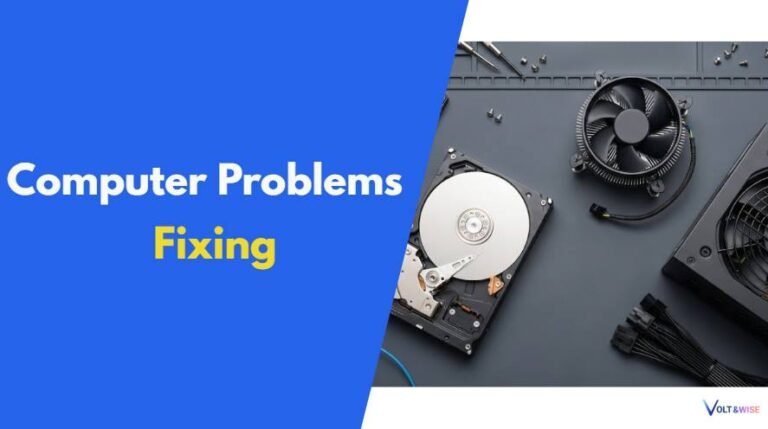
Running out of space is also one of the most common causes of a slow laptop, so if yours already feels sluggish, our guide to common computer problems can help.
Step 5: Screen Size, Display Quality and Portability
Screen size is a trade-off between workspace and portability, so decide where your laptop will spend most of its time. According to Laptop Mag, 13 to 14 inches is the sweet spot for most users because it balances usability and portability.
| Screen Size | Best For | Trade-Off |
|---|---|---|
| 12 to 13 inches | Frequent travelers, maximum portability | Cramped for multiple windows |
| 14 inches | Students and commuters | Few downsides for most people |
| 15 to 16 inches | All-round use, multitasking, creative work | Heavier to carry daily |
| 17 to 18 inches | Desktop replacement, gaming, editing | Bulky and heavy |
For image quality, Full HD (1920 x 1080) is the practical minimum. Avoid low-resolution panels on cheap models. Higher resolutions like QHD and 4K look sharper but use more battery. Also look at the panel type: IPS gives wide viewing angles, while OLED delivers deeper contrast and richer color. Finally, choose between glossy (vivid colors, more reflections) and matte (less glare, better near windows).
Tip: Brightness matters as much as resolution. A dim screen is hard to use outdoors or near a window, so look for reviews that mention real brightness testing.
Step 6: Battery Life, Keyboard and Ports

These details decide whether you’ll enjoy using a laptop every day, yet spec sheets rarely highlight them. Check each one before you buy:
- Battery life. If you’ll work away from an outlet, aim for at least 8 hours of real use, with 10 or more being ideal. Manufacturer claims are often achieved under unrealistic conditions, so rely on independent tests. Features like 4K screens, touchscreens, and dedicated graphics drain batteries faster.
- Keyboard and touchpad. You’ll touch these constantly. Look for comfortable key travel, even spacing, and a large, accurate touchpad. A backlit keyboard helps in dim rooms, and a number pad is useful if you enter data often.
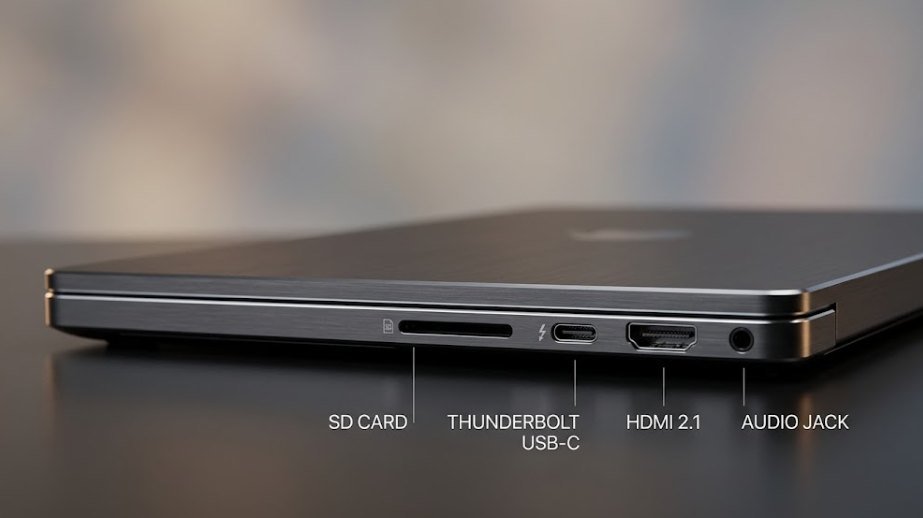
- Ports. USB-C is the most useful port, handling charging, data, and video. Many laptops now offer only USB-C, so check whether you also need USB-A, HDMI, a headphone jack, or an SD card slot. Wired Ethernet is now rare on thin models, but a cheap USB adapter solves that.
- Webcam and microphone. For video calls, look for a 1080p webcam rather than the older, grainier 720p type.
- Wireless. Look for modern Wi-Fi and Bluetooth, and remember that the fastest Wi-Fi standards only pay off if your router supports them too.
New to connectors? Our computer ports guide explains USB, HDMI, Ethernet, and audio ports in simple terms, and the Best Buy laptop guide shows which ports are common on modern models.
Dongle alert: If a laptop has only USB-C ports, budget a few extra dollars for a hub or adapter so your older accessories still work.
Step 7: Pick the Right Operating System (Windows vs macOS vs ChromeOS)
The operating system shapes your software options, your accessories, and how the laptop feels to use. There’s no universally best choice, only the best fit for you.
| Operating System | Best For | Watch Out For |
|---|---|---|
| Windows | The widest choice of laptops, prices, software, and PC gaming | Quality varies a lot between models |
| macOS | Creative work, long battery life, Apple phone and tablet users | Higher starting price, no touchscreen, limited gaming |
| ChromeOS | Students, families, web-based work on a budget | Not suited to demanding desktop software or high-end gaming |
If your classes, job, or hobbies need specific software, check which systems it supports first. Consumer Reports notes, for example, that tools like the full Adobe suite and high-end PC gaming still fit a traditional Windows or Mac laptop better than a Chromebook.
How to Choose a Laptop for College Students
A student laptop has to survive a backpack, a long day of classes, and late-night assignments. Prioritize reliability and battery life over raw power. Microsoft’s guide recommends a mid-level processor, 8GB to 16GB of RAM, and 256GB to 1TB of storage for students, and we’d lean toward the higher end of each range.
- Light weight and a 13 to 14 inch screen: You’ll carry it every day.
- 8+ hours of real battery life: Lecture halls don’t always have outlets.
- A comfortable keyboard: You’ll type essays and reports for years.
- 16GB of RAM if possible: It keeps research tabs, documents, and video calls running smoothly.
- Fingerprint or face login: Quick, secure access between classes.
Before you buy: Ask your school or department about required software and any recommended specs. Engineering, architecture, and design courses often need more power than a typical student laptop provides. Chromebooks work well for web-based coursework, but not for specialized programs.
Is a Gaming Laptop Good for College?
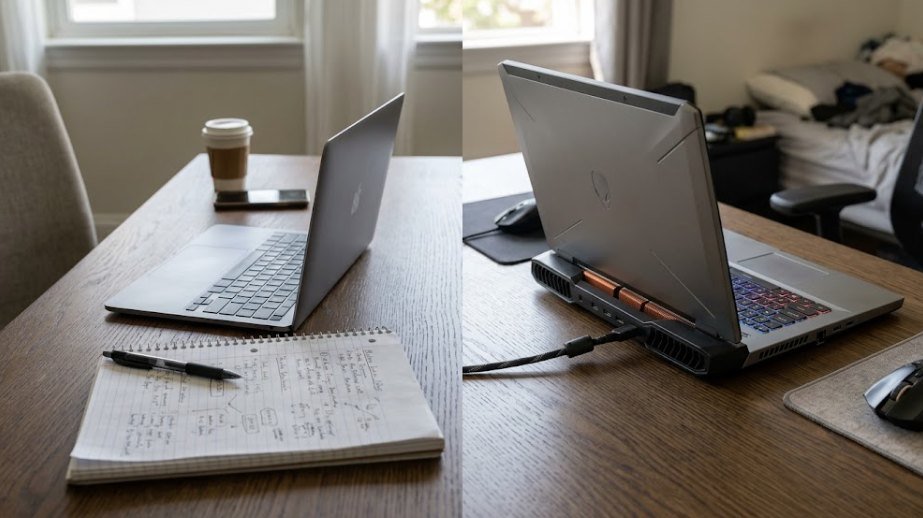
It can be, if you accept the trade-offs. A gaming laptop gives you one machine for classes and play, and its powerful hardware also helps with video editing, 3D modeling, and engineering software. The price is paid in weight, heat, and battery life.
The Upside
- One device: Study, stream, and game without owning two computers
- Extra power: Handles demanding coursework like rendering and simulations
- Longevity: Strong hardware stays useful for years
The Downside
- Weight: Heavy and bulky in a backpack
- Battery: Often only a few hours away from the charger
- Heat and noise: Fans can get loud in quiet lecture halls
- Cost: Pricier than a standard student laptop
Three things deserve special attention. First, the graphics card (GPU), which determines gaming performance. Second, cooling: a laptop with a weak cooling system gets hot and slows itself down, so look for reviews that test thermals. Third, battery life, which is the biggest daily compromise. Many gaming laptops are designed to stay plugged in, so a compact model with a mid-range GPU is usually the best balance for campus life.
How to Choose a Laptop for Gaming
For gaming, start with the graphics card, then build around it. A great processor can’t make up for a weak GPU in most games. Microsoft’s guide recommends an advanced processor, 16GB to 64GB of RAM, and a discrete graphics card for gaming laptops, and that matches what we see in practice. Our CPU vs GPU guide breaks down how the two work together.
| GPU Tier | Good For | Pair It With |
|---|---|---|
| Entry-level | Esports titles and lighter games at Full HD | Mid-range CPU, 16GB RAM |
| Mid-range | Most modern games at high settings in Full HD or QHD | Upper mid-range CPU, 16GB RAM |
| High-end | Demanding games, high refresh rates, streaming while playing | High-end CPU, 32GB RAM |
- Display: Look for a high refresh rate and at least Full HD resolution for smooth gameplay.
- Storage: Games are large, so aim for 1TB or more.
- Cooling: Read reviews for temperature and noise testing, not just benchmark scores.
- Ports: Extra USB ports and HDMI help with controllers, headsets, and external monitors.
Check the games you play: Look up the recommended system requirements for your favorite titles and buy a laptop that exceeds them, so it stays capable as games get more demanding.
How to Choose a Laptop for Creators and Video Editing
Creators need a laptop that handles large files and shows colors accurately. The display is often the most important part, because you can’t edit what you can’t see correctly. Microsoft’s guide suggests a QHD to 4K display for visual creators, along with 16GB or more of RAM for photo and video editing.
- Display: Look for wide color coverage and good brightness, ideally on an OLED or high-quality IPS panel.
- Processor: Choose a high-end chip for video editing and rendering, or an Apple Pro or Max chip if you prefer a Mac.
- RAM: 16GB is the starting point, and 32GB is smoother for 4K video.
- Graphics: A discrete GPU is essential for 3D work and helpful for high-resolution video. Check the requirements of your editing software.
- Storage: Start with 1TB, and plan on an external SSD for finished projects.
- Ports: An SD card slot and fast USB-C or Thunderbolt ports save time when moving footage.
You don’t have to buy a laptop labeled “creator.” Plenty of gaming and workstation laptops meet the same needs, so compare displays, thermals, and ports instead of marketing labels.
How to Choose a Laptop for Work and Professionals
For work, reliability and comfort beat raw speed. You’ll spend hours in meetings, documents, and spreadsheets, so the keyboard, battery, and webcam matter more than a powerful graphics card. A mid-range processor and 16GB of RAM handle most office workloads with ease.
- Battery: All-day endurance means you’re not hunting for an outlet before a meeting.
- Keyboard and touchpad: Comfort is critical for long typing sessions.
- Webcam and microphones: A 1080p camera and good microphones make video calls look and sound professional.
- Security: A fingerprint reader or face login keeps sensitive data protected.
- Build and support: A sturdy chassis and a brand with good technical support save headaches later.
- Connectivity: USB-C that works with docks and external monitors makes a desk setup easy.
Many professionals choose business-focused lines or thin-and-light models because they combine durability, security features, and long battery life. If your employer issues or requires specific devices, confirm any IT requirements before you buy your own.
Frequently Asked Questions
What are 5 important things to consider when buying a computer?
Focus on your budget and main use first, then the processor, RAM, storage type and size, and finally the screen and battery life. If these five match your needs, the details matter far less.
What to avoid when buying a laptop?
Avoid very low RAM, slow eMMC or mechanical storage, low-resolution screens, and battery claims you haven’t verified in independent reviews. Also avoid overspending on power you won’t use, and don’t forget to check ports, keyboard comfort, and warranty before you pay.
What laptop to stay away from?
Rather than avoiding a single brand, stay away from specific types: bargain laptops with 4GB of RAM, models with a low-resolution display, machines with weak cooling that overheat, and laptops from brands with poor support. Read recent independent reviews of the exact model before you buy.
Is it better to buy a laptop from Costco or Best Buy?
Neither is automatically better. Compare the final price, return window, warranty terms, and how easy it is to get support or try the laptop in person. Choose whichever retailer offers the best protection and price for the exact model you want.
Is a gaming laptop good for college students?
Yes, if you want one device for study and play and you’re comfortable carrying extra weight. The downsides are shorter battery life, fan noise, and a higher price, so a compact model with a mid-range GPU is usually the best choice.
What is a good laptop for both university and gaming?
Look for a 14 to 16 inch laptop with a mid-range graphics card, 16GB of RAM, a 512GB to 1TB SSD, and decent cooling. It should be light enough to carry, and ideally have a battery that lasts through at least part of a school day.
What laptop do most content creators use?
Creators commonly use MacBook Pro models and powerful Windows laptops with a strong display and a discrete graphics card. The best choice depends on your editing software, so match the laptop to what your programs support.
What laptop do most professionals use?
Most professionals use lightweight business-oriented Windows laptops or MacBooks, chosen for long battery life, comfortable keyboards, security features, and reliable support. Many companies also issue approved devices, so check your workplace policy.
What to check before buying a gaming laptop?
Check the graphics card tier, cooling performance in reviews, RAM, storage size, display refresh rate, battery life, and the ports you need. Most importantly, compare the laptop’s specs against the system requirements of the games you actually play.
What features should I look for in a laptop for students?
Look for light weight, 8+ hours of battery life, a comfortable keyboard, 16GB of RAM if your budget allows, a fast SSD, and secure login. Also confirm your school’s software requirements before buying.
Final Thoughts
The best laptop isn’t the one with the biggest numbers. It’s the one that matches how you actually work, study, and play. Start with your use case and budget, get the processor, RAM, and storage right, then check the screen, battery, keyboard, ports, and operating system. Do that, and you’ll avoid the most common regrets. Once your new laptop arrives, keep our guide to common computer problems handy so you can fix small issues quickly and keep it running well for years.