Every cable you plug into a computer fits a port built for a specific job, and two ports that look alike can behave very differently. This beginner’s guide explains USB, HDMI, DisplayPort, Thunderbolt, Ethernet, and audio ports in plain English, shows you how to tell them apart, and finishes with a cheat sheet and troubleshooting fixes.
Quick answer
A computer port is a socket that connects your device to something else: a screen, a network, a keyboard, speakers, or power. The ones you will meet most often are USB-A, USB-C, HDMI, DisplayPort, Ethernet, and the 3.5 mm audio jack.
Who this guide is for
Anyone buying a laptop or PC, setting up a second monitor, or wondering why a cable fits perfectly but nothing happens when it is plugged in.
Ports are easy to ignore until a cable will not fit or a monitor stays black. Computer makers such as HP and Lenovo publish port explainers, and the consumer group Which? has a detailed guide to USB, HDMI, and other laptop ports. This guide pulls the essentials together in one place. If you are new to hardware in general, start with our beginner’s guide to how computers work, then come back here.

What Are Computer Ports and What Are They Used For?
A computer port is a physical connection point that lets your computer exchange data, video, sound, or power with another device. Ports are the reason you can plug in a mouse, charge a phone, connect a second screen, or join a wired network.
Ports are usually grouped by what they carry. This also answers the common question “what are the four types of ports?” Most guides sort them into four families, plus power:
- Data ports: USB-A, USB-C, Thunderbolt, and SD card slots, used for accessories and storage.
- Video ports: HDMI, DisplayPort, DVI, and VGA, used for monitors, TVs, and projectors.
- Audio ports: 3.5 mm jacks for headphones, speakers, and microphones.
- Network ports: Ethernet (RJ45) for a wired internet connection.
- Power ports: a dedicated charging socket, or a USB-C port that accepts a charger.
Port, connector, cable: The port is the socket on your device, the connector is the plug on the end of a cable, and the cable is the wire between them. A connector can fit a port and still not work if the port does not support what you are asking it to do.

Computer Ports List: A Quick-Reference Table of All Ports
The fastest way to identify a port is by its shape, because the plug and the port are matching shapes. Hold the cable connector next to the table below to find what you have. Detailed spec pages on Wikipedia cover each standard in depth, for example USB-C and HDMI.
| Port | What it looks like | What it carries | Typical use |
|---|---|---|---|
| USB-A | Flat rectangle, fits one way | Data, low power | Keyboards, mice, flash drives |
| USB-C | Small rounded oval, reversible | Data, power, and sometimes video | Charging, docks, monitors, phones |
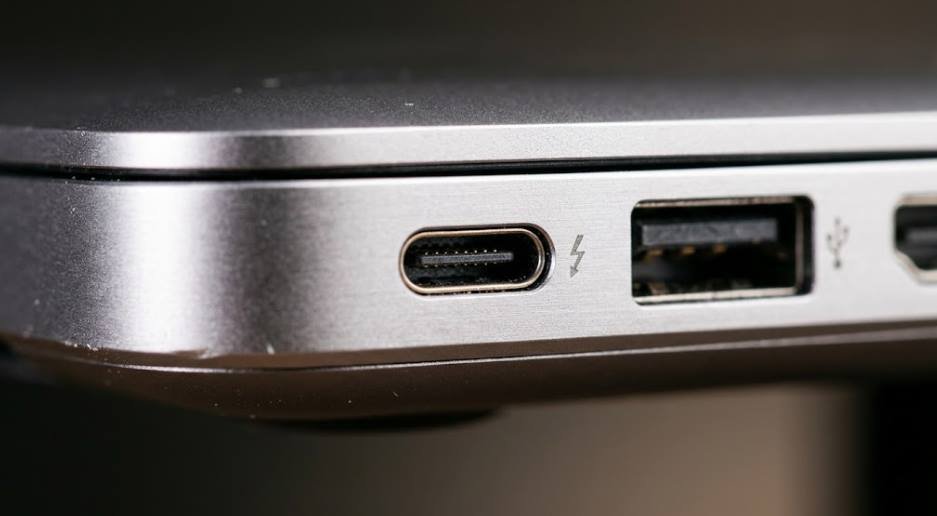
| Thunderbolt | Same shape as USB-C, often marked with a lightning bolt | Fast data, video, power | Docks, fast drives, multiple displays |
| HDMI | Wide trapezoid, flat on one side | Video and audio | TVs, monitors, projectors |
| DisplayPort | Rectangle with one angled corner | Video and audio | Gaming and high-refresh monitors |
| Ethernet (RJ45) | Wide jack with a notch for a clip | Network data | Wired internet |
| 3.5 mm audio | Small round hole | Analog audio | Headphones, speakers, microphones |
| VGA | Blue 15-pin trapezoid with screws | Analog video only | Older monitors and projectors |
| DVI | Wide white connector with many pins | Video | Older monitors |
| SD card slot | Thin flat slot | Storage data | Cameras and memory cards |
| Power (barrel) | Round socket with a center pin | Power | Charging laptops and desktops |
Desktops usually have more ports than laptops, and thin laptops often have very few. If you are deciding between the two, our laptop vs desktop comparison covers how port selection differs. Compact mini PCs also tend to trade ports for size, which our guide to the types of computers explains.
USB Ports Explained: USB-A vs USB-C and Speeds
USB stands for Universal Serial Bus, and it is the most versatile port on any computer. The USB Implementers Forum maintains the standard. Three things matter about any USB port: its shape, its speed, and its extra features such as video output or charging.
How to tell USB-A and USB-C apart
USB-A is the classic flat rectangle. It only fits one way, which is why it famously takes a few tries. USB-C is a small, rounded oval that works either way up and can appear on both ends of a cable. USB-C is gradually replacing USB-A on modern laptops, but plenty of accessories still use the older shape.
What USB-C can do
- Charge: power laptops, phones, and tablets when the port supports power delivery.
- Output video: drive a monitor when the port supports DisplayPort over USB-C or Thunderbolt.
- Move data fast: reach 10 Gbps or more when the port supports USB 3.2 Gen 2, USB4, or Thunderbolt.
What USB-C may not do
- Guarantee any feature: the shape says nothing about speed, video, or charging support.
- Charge at full speed: a weak charger or cable will charge a laptop very slowly.
USB speeds at a glance
The numbers after “USB” tell you the maximum speed. Naming has changed several times, so you may see the same speed sold under different labels. Check your device’s spec sheet to confirm, as this port identification guide also advises.
| USB standard | Maximum speed | Connector | Good for |
|---|---|---|---|
| USB 2.0 | 480 Mbps | USB-A, USB-C | Keyboards, mice, basic charging |
| USB 3.0 (also called USB 3.2 Gen 1) | 5 Gbps | USB-A, USB-C | Flash drives, external hard drives |
| USB 3.1 (also called USB 3.2 Gen 2) | 10 Gbps | USB-A, USB-C | External SSDs, large file transfers |
| USB 3.2 Gen 2×2 | 20 Gbps | USB-C only | Fast external storage |
| USB4 | Up to 40 Gbps | USB-C only | Docks, fast storage, displays |
Two USB devices will almost always work together, but they connect at the speed of the slower one. A fast external SSD plugged into a USB 2.0 port will work, just slowly. Blue plastic inside a USB-A port often signals a faster USB 3.x port, but manufacturers do not follow this color rule consistently.
Tip: Use your fastest USB port for external drives and your slowest for a mouse or keyboard. Basic accessories gain nothing from extra speed.
HDMI and DisplayPort: Which Video Port Do You Need?
HDMI and DisplayPort both carry video and audio to a screen, and both are far better than older analog options. HDMI is the default for TVs and general monitors, while DisplayPort is popular on gaming monitors and business desktops.
| Feature | HDMI | DisplayPort |
|---|---|---|
| Best for | TVs, general monitors, game consoles | Gaming monitors, multi-monitor desks |
| Carries audio | Yes | Yes |
| Daisy-chaining monitors | No | Yes, on monitors that support it |
| Found on TVs | Almost always | Rarely |
| Smaller versions | Mini HDMI and micro HDMI | Mini DisplayPort |
| High refresh rates | Depends on the HDMI version | Often easier to reach on common monitors |
The version of the port and the quality of the cable both matter. If your laptop’s HDMI port only supports Full HD, a 4K TV will still be limited to Full HD. Check your device’s manual to see the maximum resolution and refresh rate it supports.
Which port do you plug HDMI into on a desktop PC?
If your desktop has a dedicated graphics card, plug your monitor into the ports on the graphics card, not the ones on the motherboard. The graphics card is the large card with its own fans, and it is the part that does the heavy visual work, as we explain in our CPU vs GPU guide. Plugging into the motherboard in this situation can leave the graphics card unused or the screen blank.
USB vs HDMI vs USB-C: Can You Use One as the Other?
No, an HDMI cable will not fit a USB port and the two ports do different jobs. HDMI carries video and audio only. USB-A carries data and a little power. USB-C is the flexible one: depending on the port, it can carry data, power, and video all at once.
| Port | Main job | Video | Data | Power |
|---|---|---|---|---|
| USB-A | Connect accessories | No (adapters aside) | Yes | Small devices only |
| USB-C | Do almost everything | Yes, if the port supports it | Yes | Yes, if the port supports it |
| HDMI | Send video and sound to a screen | Yes | No | No |
You can connect a laptop with only USB-C ports to an HDMI screen with a USB-C to HDMI cable or adapter, as long as the USB-C port supports video output. A USB-A to HDMI adapter also exists, but it works differently by using software drivers, and it is best for basic displays rather than gaming or video editing.
Will USB-C replace HDMI?
USB-C is replacing many ports on thin laptops, but HDMI is not going away. TVs, game consoles, and projectors still depend on it. For a monitor, USB-C is great when you want one cable that carries video, data, and charging. HDMI or DisplayPort is simpler when you just want a screen to work. For gaming, use whichever port gives you the resolution and refresh rate your monitor supports, and for a TV, HDMI is the standard choice.
Thunderbolt vs USB-C: How to Tell Them Apart (With Port Symbols)
Thunderbolt and USB-C use the same oval connector, which is why people confuse them. USB-C is the shape, while Thunderbolt is a faster, more capable standard that runs over that shape. Thunderbolt is not exclusive to Apple, and many Windows laptops include it.
| Feature | Standard USB-C port | Thunderbolt port |
|---|---|---|
| Connector shape | USB-C oval | USB-C oval |
| Maximum speed | Varies widely by port | Up to 40 Gbps on Thunderbolt 3 and 4 |
| Video output | Only if the port supports it | Yes, including multiple displays |
| Cable | Almost any USB-C cable for basic use | A certified Thunderbolt cable for full speed |
| Extras | Depends on the port | Single-cable docks, external graphics cards |
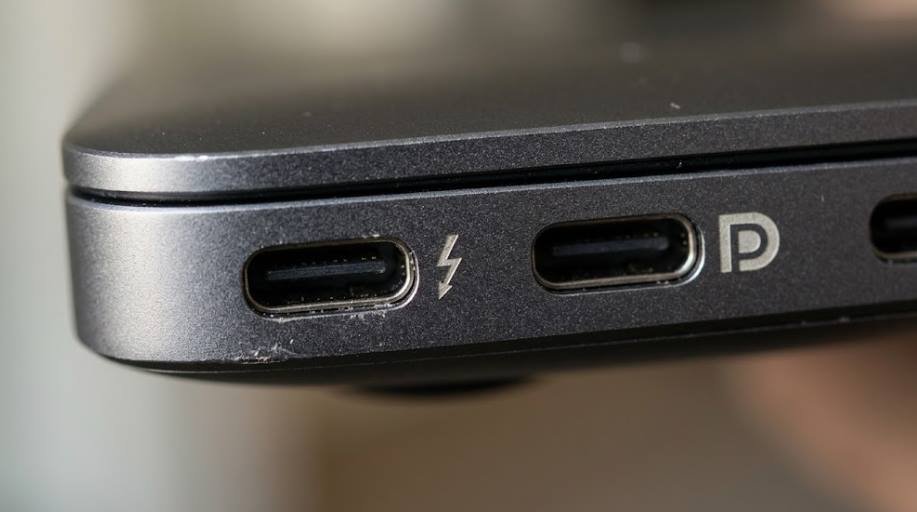
Look for a small symbol next to each USB-C port. Laptop makers do not always add them, but when they do, they tell you what the port can do:
- Lightning bolt: a Thunderbolt port, the most capable option for docks and external monitors.
- DisplayPort “D” logo: the port can send video to a monitor.
- Battery or power icon: the port is meant mainly for charging.
- No symbol: check the manual or the manufacturer’s spec page for the answer.
Why this matters: Two USB-C ports side by side on the same laptop can do completely different things. The shape tells you what a port is, and only the symbol or the spec sheet tells you what it does.
Ethernet Ports Explained: RJ45, Wi-Fi vs Wired, and Do You Need One?
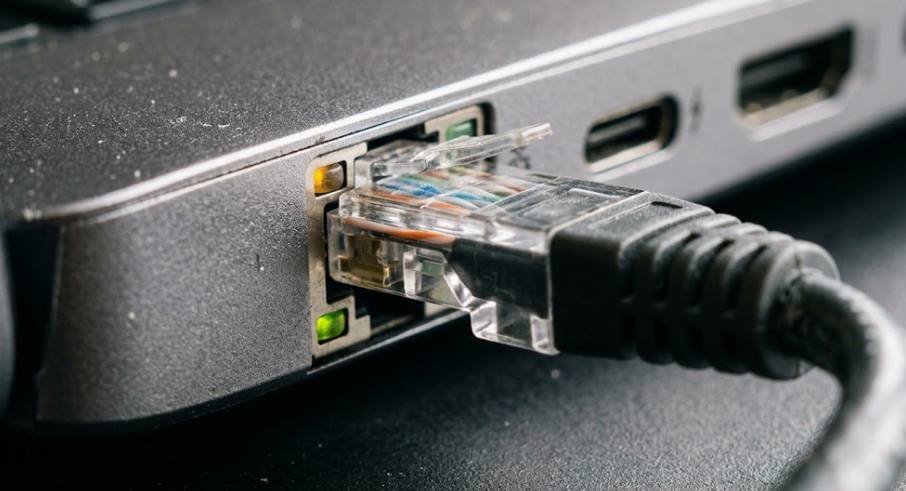
An Ethernet port, also called an 8P8C port, connects your computer to your router with a cable for a wired internet connection. Ethernet is wider than a phone jack and has a small notch where the cable’s clip locks in. Desktops almost always have one, while many thin laptops leave it out to save space.
Is Ethernet better than Wi-Fi?
For stability, usually yes. Wi-Fi can be slowed by walls, distance, and other devices, while a cable gives a steady connection with lower delay. That is why wired connections are popular for gaming, video calls, and large file transfers.
Where wired wins
- Stability: no drop-outs from walls or interference.
- Low delay: better for online gaming and calls.
- Consistent speed: better for big downloads and backups.
Where wired falls short
- Mobility: you are tied to a cable and a router.
- Missing port: many slim laptops need a USB adapter.
You do not need an Ethernet port for Wi-Fi to work, because Wi-Fi uses a built-in wireless card. If your laptop lacks the port, a USB-to-Ethernet adapter adds one cheaply. Pick your cable by category, since it affects speed:
| Cable type | Typical top speed | Best for |
|---|---|---|
| Cat5e | 1 Gbps | Everyday home use |
| Cat6 | 1 Gbps, and 10 Gbps over short runs | Home offices and gaming |
| Cat6a | 10 Gbps over full distance | Future-proofing and heavy networks |
Ethernet cables work reliably up to about 100 meters (328 feet), so cable length is rarely a problem at home. The small lights beside the port usually flash to show that the link is active, which is a handy first check if the connection seems dead.
Audio Ports and Jacks: Headphone, Mic, and Line-In
Most computers use 3.5 mm audio jacks, the same round connector as standard wired headphones. Laptops typically have a single combo jack that handles both headphone output and microphone input. Desktops often split these into separate, color-coded jacks. The standard color code works like this:
| Jack color | Function | What to plug in |
|---|---|---|
| Green | Line out | Headphones or front speakers |
| Pink | Microphone in | Microphone or headset mic |
| Blue | Line in | Instruments, mixers, or audio players |
| Black | Rear speakers | Surround sound rear channels |
| Orange | Center and subwoofer | Surround sound center and bass |
| Grey | Side speakers | Surround sound side channels |
A few audio facts trip people up. A combo jack needs a headset with a matching four-contact plug to use the microphone. Analog headphones will not work if you plug them into a USB port, although USB headsets with built-in sound hardware do. Some desktops also have a digital optical audio port for home theater equipment. HDMI and DisplayPort already carry sound, so a monitor with speakers does not need a separate audio cable.
Older and Less Common Ports (VGA, DVI, SD Card, Serial)
You may still run into older ports on refurbished computers, classroom projectors, and office equipment. The VGA connector and DVI are the ones you are most likely to see. This port list covers many more legacy types if you need to identify something unusual.
| Port | What it was used for | Today |
|---|---|---|
| VGA | Analog video to monitors and projectors | Still found on older displays and meeting rooms |
| DVI | Digital video to monitors | Rare, replaced by HDMI and DisplayPort |
| SD card slot | Reading camera memory cards | Common on some laptops, easy to replace with a USB reader |
| Serial (RS-232) | Modems, scanners, and industrial equipment | Niche, used in specialist hardware |
| Parallel | Older printers | Obsolete |
| PS/2 | Older keyboards and mice | Rare, replaced by USB |
| FireWire and eSATA | External drives and cameras | Obsolete, replaced by USB and Thunderbolt |
If you need to connect to one of these, an adapter or a USB reader is usually cheaper than replacing the equipment.
How to Add More Ports: Adapters, Hubs, and Docking Stations
Missing a port is rarely a dealbreaker. Most ports can be converted or expanded with the right accessory, and Which? explains what each laptop port does in its guide to USB, HDMI, and other laptop ports. Choose the tool that matches the job:
| Accessory | What it does | Best for |
|---|---|---|
| Adapter or cable | Converts one port type to another, such as USB-C to HDMI | One specific missing connection |
| USB hub | Turns one USB port into several | More keyboards, drives, and accessories |
| Docking station | Fans one USB-C or Thunderbolt port into video, USB, Ethernet, and power | A desk setup with one-cable convenience |
| PCIe expansion card | Adds ports inside a desktop | Desktops that need extra USB or video ports |
The adapter rule: An adapter can only pass along what the port already supports. A USB-C port without video output will not drive a monitor just because you added a USB-C to HDMI adapter, so check the port symbol or spec sheet first.
For laptops, a dock is the most convenient fix, especially if you connect to a monitor, keyboard, and network at a desk every day. Powered hubs and docks are worth choosing for power-hungry devices like external hard drives.

Port Not Working? Quick Troubleshooting Fixes
Most “broken port” problems are really cable, setting, or compatibility problems. Work through these steps in order before assuming the hardware has failed:
- Reseat the connection. Unplug the cable, check for dust or lint in the port, and plug it back in firmly.
- Swap the cable. A damaged or low-quality cable is the most common culprit, especially for USB-C and HDMI.
- Try another port or device. This shows whether the fault is the port, the cable, or the accessory.
- Check the port’s capabilities. Make sure the port supports what you are asking, such as video or fast charging.
- Check your settings. Look at the display settings for a missing screen or the sound settings for the correct output device.
- Restart and update. Restart the computer and install any pending system or driver updates.
Here are the most common symptoms and their usual causes:
| Symptom | Likely cause | Fix |
|---|---|---|
| USB-C cable fits but no monitor signal | The port does not support video output | Use a port marked with a DisplayPort or Thunderbolt symbol |
| HDMI shows “no signal” | Wrong input selected or loose cable | Select the correct input on the screen and reseat the cable |
| Laptop will not charge over USB-C | Weak charger or a non-charging port | Use the original charger and the port that supports charging |
| Ethernet connects but is slow or drops | Faulty cable or router port | Try a different cable and a different router port |
| No sound from the headphone jack | Wrong output device selected | Choose the headphones in your sound settings |
| USB drive is slow | Plugged into a USB 2.0 port | Move it to a faster USB port |
Which Port Should You Use? A Quick Cheat Sheet
Use this table when you are standing in front of your computer with a cable in your hand. Find the task, then use the best port first and the backup if you do not have it.
| Task | Best port | Why it fits | Backup option |
|---|---|---|---|
| Connect a TV | HDMI | Carries video and sound and is on almost every TV | USB-C to HDMI cable |
| Connect a gaming monitor | DisplayPort | Handles high refresh rates well | HDMI |
| Connect a laptop to a dock | Thunderbolt or USB-C | One cable for video, data, and power | USB-C with video support |
| Stable internet for work or gaming | Ethernet | Steady speed and low delay | USB-to-Ethernet adapter |
| Fast external SSD | USB-C 10 Gbps or faster | Quick large file transfers | USB-A 3.x port |
| Keyboard and mouse | Any USB-A port | Basic devices need little speed | USB hub |
| Headphones with mic | 3.5 mm combo jack | Handles both sound and voice | USB headset |
| Older monitor or projector | VGA or DVI | Matches the old input | HDMI-to-VGA adapter |
Ports are only one part of a good buying decision. Our guide to how much RAM you need and our CPU vs GPU comparison help you weigh the rest of the specs.
Frequently Asked Questions
What are the four types of computer ports?
Ports are commonly grouped into data ports (USB, Thunderbolt), video ports (HDMI, DisplayPort), audio ports (3.5 mm jacks), and network ports (Ethernet). Power ports are often listed as a fifth group.
Which port do I plug HDMI into on my PC?
If your desktop has a dedicated graphics card, plug into the HDMI port on that card. If it only has integrated graphics, use the HDMI port on the back of the motherboard. On a laptop, use the HDMI port on the side or back.
How do I know if I have USB-A or USB-C?
USB-A is a flat rectangle that fits one way. USB-C is a small rounded oval that fits either way up. Older keyboards, mice, and flash drives usually use USB-A, while newer laptops, phones, and docks lean toward USB-C.
Are HDMI and USB ports the same?
No. HDMI carries video and audio to a screen, while USB carries data and power between devices. The connectors are different shapes and are not interchangeable, although USB-C can output video with the right adapter.
Can you plug an HDMI cable into a USB port?
No, it will not fit and should never be forced. To connect a USB-C laptop to an HDMI screen, use a USB-C to HDMI cable or adapter, and make sure the USB-C port supports video output.
Will USB replace HDMI?
Not completely. USB-C is replacing several ports on slim laptops, but TVs, consoles, and projectors still rely heavily on HDMI, so the two are likely to coexist.
What is an Ethernet port for?
It connects your computer to a router or network switch by cable for a stable wired internet connection. See the Lenovo ports overview for more on when wired networking helps.
Do I need an Ethernet port for Wi-Fi?
No. Wi-Fi uses a built-in wireless card. An Ethernet port is only needed if you want a wired connection, and a USB adapter can add one to any laptop.
Can one USB-C port do everything?
Only if it is built for it. A USB-C port can support data, charging, and video, but each feature depends on the specific port, so check the symbols or the spec sheet.
Final Thoughts
Identify ports by shape, then confirm what they can do by symbol or spec sheet. USB-A is for everyday accessories, USB-C and Thunderbolt are the flexible all-rounders, HDMI and DisplayPort handle screens, Ethernet gives you a steady connection, and the 3.5 mm jack handles sound. If a port is missing, an adapter, hub, or dock almost always fixes it. Bookmark this guide as your reference, and read our laptop vs desktop comparison to choose the right machine for your needs.