
When your computer refuses to start, crawls along, or freezes in the middle of important work, it is easy to panic. The good news is that most problems have simple causes you can find and fix yourself. This guide gives you a clear step-by-step method, plus practical fixes for the most common computer problems.
Start here first
Restart the computer and check every cable. These two quick steps solve a surprising number of problems before you try anything harder.
Protect your files
Before any bigger fix, back up what matters. A fix can fail, but a good backup means you never lose your photos or documents.
Computer problems usually fall into a few familiar groups: no power, no picture, slow speed, freezing, overheating, bad connections, and failing devices. Guides such as the TeamViewer list of common computer problems show how often the same issues come up for home users and offices alike. If you are new to the hardware side, our beginner guide on how computers work will make the fixes below easier to follow.
What Is Computer Troubleshooting? (With Simple Examples)
Computer troubleshooting is the process of finding out why something is wrong and fixing it in a logical order. Instead of clicking random settings, you start with the simplest and most likely causes, then move toward the harder ones. As the CCI Training Center troubleshooting guide explains, the first step is always to gather information about what is actually happening.
Here are three simple examples of troubleshooting in action:
- The computer will not turn on. You check the power cable, test the wall outlet with another device, and then look at the power supply.
- The internet stopped working. You check whether other devices connect, restart the router, and then look at your computer’s network settings.
- A program keeps crashing. You close it, restart the computer, update the program, and only then consider reinstalling it.
In every case the pattern is the same: observe, test the easy things, change one thing at a time, and check the result.
The 7 Basic Steps of Computer Troubleshooting Every Beginner Should Know
You can use this simple method on almost any computer problem. It works for Windows PCs, Macs, laptops, and desktops. Follow the steps in order and do not skip ahead.
- Identify the problem. Write down exactly what is happening. Does the screen stay black, does the computer beep, or does it only slow down when you open a certain program?
- Note what changed recently. A new program, a driver update, a spilled drink, or a power cut can all be clues. Most problems start right after a change.
- Check the basics. Make sure the power is on, the cables are firmly connected, and any lights on the device are behaving normally.
- Restart the computer. A restart clears temporary glitches and frees up memory. If the computer is frozen, hold the power button for several seconds to shut it down, then start it again.
- Search for the cause. Look up any error message or code exactly as it appears. Check for updates, run a malware scan, and test one possible cause at a time.
- Try the fix and test the result. Change only one thing at a time. If you change five settings at once, you will never know which one solved the problem.
- Document what worked. Write a short note about the problem and the solution. It saves time if the same issue returns, and it helps a technician if you need professional support.
Helpful habit: Take a photo of any error message with your phone. It is faster than typing it out, and it gives you exact wording to search for later. The Pima Community College troubleshooting guide also recommends noting anything unusual that happened just before the problem began.
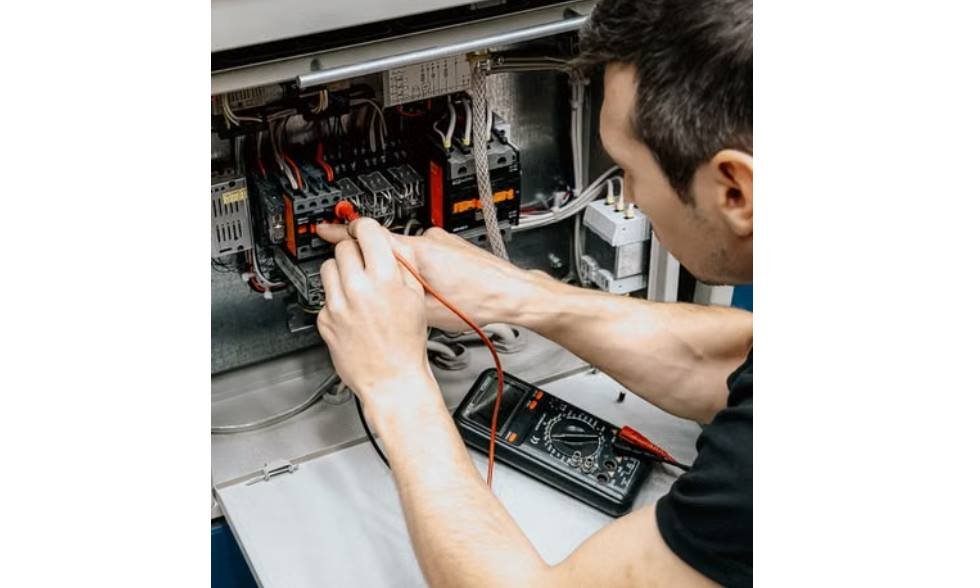
Before You Start: Back Up Your Data and Stay Safe
Some fixes, such as resetting Windows or replacing a drive, can erase files. Other problems, like a failing hard drive, can get worse the longer the computer stays on. If your computer still starts, copy your important files to an external drive or cloud storage before you try anything advanced.
Safety matters too, especially if you plan to open a desktop case or clean a laptop. Computers contain parts that are sensitive to static electricity, and the power supply can be dangerous. The iFixit desktop troubleshooting wiki is a good reference if you want to see what the inside of a PC looks like before you touch it.
Do this
- Back up first: Copy documents, photos, and anything you cannot replace.
- Unplug before opening: Shut the computer down and disconnect the power cable.
- Touch bare metal: Touch the metal case first to discharge static electricity.
- Take photos: Photograph cable positions before you unplug anything.
Avoid this
- Forcing parts: Components should slide in with gentle, even pressure.
- Using water: Never clean internal parts with liquid.
- Opening a power supply: Replace it instead of repairing it yourself.
- Random downloads: Do not install “free repair tools” from unknown websites.

Black Screen or No Display: How to Fix It
A black screen is frightening, but it does not always mean the computer is dead. Very often the computer is running while the picture simply is not reaching the monitor. The key question is whether the computer is actually on. Listen for fans, look for power lights, and check whether the keyboard lights respond.
Work through these steps in order:
- Check the monitor’s power and input. Make sure the monitor is on and set to the correct input, such as HDMI or DisplayPort.
- Reseat the display cable at both ends. Unplug and firmly plug it back in. If you have another cable, try it. Our guide to computer ports explains the differences between HDMI, DisplayPort, and other video connections.
- Use the right port on a desktop. If your computer has a graphics card, plug the monitor into the card, not the motherboard video port behind it.
- Wake the display. On Windows, press the Windows key + Ctrl + Shift + B to restart the graphics driver. You can also press Windows key + P to check that the display mode is not set to the wrong screen.
- Disconnect extras. Unplug USB drives, printers, and extra monitors, then restart. A faulty device can sometimes block startup.
- Test another screen. Connect the computer to a different monitor or TV. If it works, the original monitor is the problem.
If those steps fail, use the table below to narrow down the cause. The same patterns appear in the “no or distorted video output” section of the iFixit troubleshooting wiki.
| What you notice | Likely cause | What to try |
|---|---|---|
| No lights, no fans, no sound | No power reaching the computer | Check the power cable, wall outlet, power strip, and power supply switch |
| Fans spin but the screen is black | Loose display cable or wrong input | Reseat the cable and select the correct monitor input |
| Black screen after a driver update | Faulty graphics driver | Boot into Safe Mode and roll back or reinstall the driver |
| Computer beeps and shows nothing | RAM or graphics card not seated properly | Power off, unplug, and reseat the RAM and graphics card |
| Picture is stretched or distorted | Wrong resolution or failing cable | Reset the resolution and try a different cable |
Laptop tip: If a laptop shows a black screen, shine a flashlight at the screen at an angle. If you can faintly see the desktop, the backlight has failed rather than the computer. Also try disconnecting the charger and holding the power button for about 30 seconds to reset the power state.

Computer Running Slow: How to Find and Fix the Cause
A slow computer is one of the most common complaints, and it usually comes down to too many programs competing for too few resources. As Intel explains in its guide to a slow computer, background processes, full storage, and limited memory are the usual suspects.
Start by opening Task Manager with Ctrl + Shift + Esc. Look at the CPU, Memory, and Disk columns to see which program is using the most. If one app is using almost everything, close it or update it. If memory stays very high all the time, you may need more RAM, and our guide on how much RAM you need can help you decide how much to buy.
| Cause | How to check | How to fix it |
|---|---|---|
| Too many startup programs | Task Manager, Startup tab | Disable apps you do not need at startup |
| Full storage drive | Settings, then Storage | Delete large unused files, empty the recycle bin, and run Disk Cleanup |
| Not enough RAM | Task Manager, Performance tab | Close unused programs, or add more RAM |
| Old hard drive (HDD) | Disk usage stays near 100 percent | Upgrade to a solid-state drive (SSD) |
| Malware or adware | Pop-ups, odd browser changes, high CPU use | Run a full scan with a trusted security program |
| Overheating | Hot case, loud fans, sudden slowdowns | Clean dust and improve airflow (see the overheating section below) |
| Outdated system or drivers | Check for updates | Install pending updates and restart |
For a quick improvement, restart the computer, install any waiting updates, and uninstall programs you no longer use. If you still see no change, scan for malware with a reputable tool such as Malwarebytes. Note that defragmenting is only useful for old mechanical hard drives and should not be done on an SSD.

Computer Freezing or Crashing: What to Do
Freezes and crashes can come from software bugs, driver conflicts, overheating, a failing drive, or bad memory. The trick is to work out whether the problem happens in one program or across the whole computer. A single frozen app is usually a software issue. If the whole system locks up, the cause is more likely a driver, heat, or hardware problem.
If one program freezes
Press Ctrl + Shift + Esc, select the frozen program, and choose End task. Then reopen it and install any available update. If it keeps freezing, reinstall the program. The Computer Hope guide to freezing computers covers more causes and fixes.
If the whole computer freezes
- Wait a minute or two. Heavy tasks sometimes make the system look frozen when it is just busy.
- Force a restart. Hold the power button until the computer turns off, wait a few seconds, then start it again.
- Update your system and drivers. Pay special attention to the graphics driver and Windows updates.
- Run a memory test. In Windows, search for “Windows Memory Diagnostic” and let it check your RAM.
- Check drive health. A free tool such as CrystalDiskInfo shows the health status of your drive.
- Try Safe Mode. If the computer is stable in Safe Mode, a recently installed program or driver is the likely culprit. Uninstall the newest one.
About the Blue Screen of Death: A blue screen with an error code is Windows telling you it hit a critical error and had to stop. It is often caused by a faulty driver or hardware. Write down the stop code shown on the screen, then search for that exact code. If it appears after an update, rolling back the driver in Device Manager is often the fastest fix.
Overheating and Loud Fan Noise: Causes and Solutions
Heat is the enemy of every computer. When parts get too hot, the computer slows itself down to protect them, and in serious cases it shuts down suddenly. Warning signs include a case that feels very hot, fans running loudly all the time, random restarts, and performance that drops during games or heavy work. To understand which parts produce the most heat, see our comparison of the CPU vs GPU.
Most overheating comes from dust and poor airflow. As the Avast guide to fixing an overheating computer notes, blocked vents and clogged fans trap heat inside the case.
Simple solutions
- Clear the vents: Leave open space around the computer so air can flow.
- Clean the dust: Use compressed air on vents, fans, and heat sinks. Hold fan blades still while you blow.
- Use a hard surface: Keep laptops off beds and sofas. A laptop stand improves airflow.
- Close heavy programs: Stop apps that keep the processor at full load.
Signs of a bigger problem
- A fan that does not spin: A dead fan needs to be replaced.
- Grinding or rattling: The fan bearings may be failing, or a cable may be touching the blades.
- Repeated clicking from a hard drive: Back up your data immediately.
- Still hot after cleaning: The thermal paste on the processor may have dried out.
Laptops are harder to cool because everything is packed into a thin body. If you are choosing between the two types of computer, our laptop vs desktop guide explains how cooling and upgrade options differ. For loud noise specifically, identify where it comes from. A whirring sound that changes with workload is usually a fan, while repeated clicking or grinding from a mechanical hard drive is a serious warning sign.

WiFi and Internet Not Working: How to Troubleshoot Your Connection
When the internet stops working, the problem is in one of three places: your computer, your router and modem, or your internet provider. The fastest way to find out is to test another device. If your phone also cannot get online, the problem is not your computer.
- Check WiFi is on. Make sure Airplane mode is off and you are connected to the right network.
- Test other devices. If other devices work, focus on your computer. If none work, focus on the router or the provider.
- Restart your network equipment. Unplug the modem and router, wait about 30 seconds, plug in the modem first, wait for the lights to settle, then plug in the router.
- Check any Ethernet cable. Make sure it is firmly connected at both ends. Our computer ports guide shows what the Ethernet port looks like.
- Run the network troubleshooter. In Windows, open Settings, go to Network and internet, and run the built-in troubleshooter.
- Forget and rejoin the network. Remove the saved WiFi network and enter the password again.
- Update the network driver. An outdated or corrupted driver can cause constant disconnections.
- Check for an outage. Visit your provider’s website or social media page, or call them if nothing else works.
If the connection drops again and again, open Device Manager, double-click your network adapter, and look under the Power Management tab. Turning off the option that lets Windows switch off the device to save power can stop random disconnects, a fix also described in the RedNight Consulting list of common computer issues.
Slow websites but good WiFi? The problem may be your browser rather than your connection. Clear the cache and cookies, then test the site in a private window. If it loads there, a browser extension is probably causing the problem.
USB, Keyboard, Mouse, and Other Devices Not Working
When a keyboard, mouse, printer, or flash drive suddenly stops responding, the cause is usually a loose connection, a dead battery, or a driver problem. These are easy to test, so always begin with the physical connection. As the Gadget Review list of frustrating computer problems points out, trying a different USB port is often enough to tell a bad port from a bad device.
| Device | First thing to try | Next step | If it still fails |
|---|---|---|---|
| Wired mouse or keyboard | Unplug and use a different USB port | Restart the computer | Test it on another computer |
| Wireless mouse or keyboard | Replace or recharge the batteries | Re-pair it or replug the receiver | Try a new receiver or cable |
| USB flash drive | Try another port | Check Disk Management for the drive | Test it on another computer |
| Printer | Check power, paper, and cable | Restart the printer and the computer | Reinstall the printer driver |
| Headphones or speakers | Check the volume and selected output device | Try a different jack or port | Update the audio driver |
| Bluetooth device | Turn Bluetooth off and on | Remove the device and pair it again | Update the Bluetooth driver |
If the physical checks do not help, open Device Manager and look for a yellow warning symbol beside the device. Right-click it and choose Update driver. If that does not work, uninstall the device and restart your computer. Windows will usually detect it and reinstall a clean driver. For more about USB ports, our computer ports explained guide covers the different USB types and what each one is used for. The PCMag guide to a USB port that stops working also covers reinstalling USB controllers.
Which PC Part Fails Most Often? (And How to Spot the Warning Signs)
No single part is guaranteed to fail first, but some are far more likely to cause trouble than others. Parts with moving pieces or heavy workloads tend to wear out sooner. In practice, the hard drive (especially a mechanical one), the cooling fans, and the power supply are among the most common failures, and the battery is the usual weak point in a laptop. Knowing the warning signs lets you act before you lose data.
| Part | Common warning signs | What to do |
|---|---|---|
| Hard drive (HDD) | Clicking or grinding, very slow file access, files that will not open, boot errors | Back up immediately and replace the drive |
| Solid-state drive (SSD) | Sudden freezes, files that disappear or corrupt, drive not detected | Back up, check health with a drive tool, and replace if needed |
| Power supply | Random shutdowns, computer will not turn on, burning smell | Stop using the computer and replace the power supply |
| Cooling fans | Loud noise, fans not spinning, high temperatures | Clean the dust, or replace the fan |
| RAM | Random restarts, blue screens, failure to boot, beep codes | Reseat the memory and run a memory test |
| Graphics card | Visual glitches, artifacts, crashes during games, no display | Reseat the card, update drivers, and test another card if possible |
| Laptop battery | Short battery life, swelling, sudden shutdowns when unplugged | Replace the battery, and stop using it if it is swollen |
To understand how these parts work together and why one failure can look like another, read our guide on how computers work. If you want to compare how different types of machines handle repairs and upgrades, see our overview of the types of computers.
Know when to stop: Call a professional if you smell burning, see a swollen battery, suspect water damage, or are not comfortable opening the case. A repair is rarely worth risking your safety or your data.
How to Prevent Common Computer Problems (Maintenance Checklist)
Most computer problems are easier to prevent than to repair. A few small habits will keep your computer faster, cooler, and more reliable. Use this checklist as a simple routine.
Every month
- Install updates: Keep Windows, your browser, and your drivers current.
- Run a security scan: Check for malware and remove unknown programs.
- Restart the computer: Do it regularly instead of leaving it on for weeks.
- Check free storage: Keep a healthy amount of free space on your main drive.
- Back up your files: Use an external drive, cloud storage, or both.
Every few months
- Clean the dust: Blow out vents and fans with compressed air.
- Review startup apps: Disable programs that slow down boot time.
- Uninstall unused software: Remove old programs and browser extensions.
- Check drive health: Look at the health status of your storage drive.
- Test your backup: Confirm that you can actually open the backed-up files.
A few daily habits help as well. Use a surge protector, shut down properly instead of cutting power, avoid eating or drinking near your keyboard, and be careful with email attachments and downloads from unknown sources. These small choices prevent many of the problems covered in this guide.
Frequently Asked Questions
What are the 5 basic troubleshooting steps for a computer?
A simple five-step version is: 1) identify the problem, 2) check the basics such as power and cables, 3) restart the computer, 4) research the cause and try one fix at a time, and 5) test the result. If the problem remains, ask for professional help. The full 7-step method earlier in this guide adds noting recent changes and documenting what worked.
How do I run a troubleshooter on my computer?
On Windows, open Settings, go to System, and look for Troubleshoot, then choose Other troubleshooters. You can run tools for the network, audio, printer, Windows Update, and more. The troubleshooter scans for common problems and applies fixes automatically where it can.
What is the most common PC part to fail?
Parts with moving components or heavy workloads fail most often. Mechanical hard drives, cooling fans, and power supplies are frequent causes of trouble, and batteries wear out in laptops. See the table in the section above for the warning signs of each part.
Why does restarting a computer fix so many problems?
A restart closes all running programs, clears temporary data from memory, and reloads the operating system and drivers from scratch. That removes many small software glitches. It is also the easiest troubleshooting step, which is why it comes early in almost every guide, including the Pima Community College troubleshooting article.
What should I do if my computer will not turn on at all?
Check that the power cable is firmly plugged in, test the wall outlet or power strip with another device, and make sure the power supply switch on a desktop is on. On a laptop, remove the charger, hold the power button for about 30 seconds, then reconnect the charger and try again. If nothing happens, the power supply or motherboard may have failed. For more detail, see the PCMag guide on what to do when a computer will not start.
How can I tell if my computer has a virus?
Common signs include sudden slowdowns, constant pop-up ads, a changed browser homepage, programs you do not remember installing, and high CPU use when you are not doing anything. Run a full scan with a reputable security program. If threats are found, follow the removal steps, then change important passwords from a clean device.
When should I call a professional instead of fixing it myself?
Call a professional if you smell burning, see smoke or a swollen battery, suspect liquid damage, hear repeated clicking from a hard drive that holds important data, or if the problem continues after you have tried the basic steps. When you contact support, share the symptoms, the error messages, and the steps you have already tried. That information speeds up the repair. Our laptop vs desktop guide can also help if you decide that replacing the machine makes more sense than repairing it.
Final Thoughts
Computer problems feel stressful, but a calm, step-by-step approach solves most of them. Identify what is wrong, check the simple things first, change one setting at a time, and keep your files backed up. With the steps in this guide, you can handle black screens, slow performance, freezes, overheating, connection issues, and failing devices with confidence. Bookmark this page, run through the maintenance checklist regularly, and you will avoid many problems before they start.