
The box says 15 hours. Your laptop is hunting for a charger by hour six. This guide shows you why that gap exists, how to read watt-hours, how to test your own battery, and how to spot the battery claims manufacturers hope you won’t question.
The quick answer
Battery hours = battery size in watt-hours (Wh) ÷ average power use in watts (W). Real-world use almost always draws more power than the lab test behind the advertised number.
What you’ll learn
How to find your Wh, estimate runtime, run a real-world test, check battery health, and decide when it’s time to replace the battery.
Laptop battery life is one of the most misunderstood specs on any product page. Microsoft’s own guidance on caring for your battery in Windows points to the built-in battery report as the starting point for understanding what your battery can still do. If you’re new to how the parts of a computer fit together, start with our beginner’s guide to how computers work, then come back here. You can also compare portable and fixed machines in our laptop vs desktop guide.

Why Your Laptop Never Lasts as Long as the Box Says
Advertised battery life usually comes from a controlled lab test. The screen is dim, Wi-Fi and Bluetooth are often off, nothing runs in the background, and the laptop plays one video on a loop or follows a scripted workload. Industry benchmarks such as MobileMark exist to make results repeatable between labs, not to copy how you use a laptop on a Tuesday afternoon.
Your real day looks different: a dozen browser tabs, a video call, cloud sync running, Bluetooth connected to earbuds, and brightness turned up because the room is bright. Each of those draws more power, so the same battery empties faster.
| Factor | Typical lab test | Real life |
|---|---|---|
| Screen brightness | Dim, fixed level | Often much brighter, and it changes |
| Wi-Fi and Bluetooth | Often switched off | Both usually on |
| Workload | One looping video or script | Many apps and tabs at once |
| Background activity | Kept to a minimum | Updates, sync, notifications |
Think of the fuel-economy sticker on a car: the figure is real, but it was measured under ideal conditions. Your battery has the same kind of gap between the sticker and your stop-and-go commute.
What Manufacturers Don’t Tell You: How to Read a Battery Claim
Manufacturers rarely lie outright. They choose the most flattering honest test. Learning to read the wording tells you how much to discount the headline number.
| What the claim says | What it usually means |
|---|---|
| “Up to 15 hours” | The best case under the maker’s own test, not an average. |
| “All-day battery” | No standard definition. Ask “whose day?” |
| “Video playback” | The lightest common workload, often at low brightness. |
| “Fast charge: 50% in 30 minutes” | Charging speed, not how long the battery lasts. |
| One battery spec for a whole model line | Different configurations can ship with different battery sizes. Check your exact model. |
Here is a five-step habit for reading any battery claim:
- Find the Wh number. Hours can be massaged, but battery capacity is a hard spec.
- Read the footnote. Look for the test type, the screen brightness in nits, and whether wireless was on.
- Do the sanity check. Divide Wh by the claimed hours to get the implied average power draw.
- Look for independent tests that use web browsing or mixed workloads rather than a video loop.
- Apply a discount. As a rule of thumb, expect real mixed use to land noticeably below the advertised figure.
Sanity-check example: a 50Wh battery advertised at 20 hours implies an average draw of only 2.5W (50 ÷ 20). That is close to an idle laptop with a very dim screen, so the claim can only hold for a very light test.

What Are Watt-Hours (Wh), and Why They Matter More Than mAh
A watt-hour measures stored energy: one watt-hour is enough to supply one watt of power for one hour. It is the fairest way to compare laptop batteries because it already accounts for voltage.
Milliamp-hours (mAh) measure electric charge, and the same mAh number can hold very different amounts of energy at different voltages. To convert, use this formula:
Wh = (mAh × volts) ÷ 1,000. Example: a 5,000mAh battery at 11.4V holds (5,000 × 11.4) ÷ 1,000 = 57Wh.
Most laptops have batteries between roughly 40Wh and 100Wh. Thin-and-light models sit at the lower end, while large gaming laptops and workstations sit at the top. The ceiling exists because of travel rules: airlines generally allow lithium-ion batteries up to 100Wh in carry-on bags, and larger ones need airline approval. Check the FAA’s lithium battery guidance before you fly with a spare.
How to Check Your Laptop Battery’s Watt-Hours (Windows & Mac)
The quickest route is the spec sheet on the manufacturer’s product page, or the label on the underside of the laptop. If you can’t find either, your operating system can tell you.
On Windows 10 and 11
- Right-click the Start button and open Terminal (Windows 11) or Windows PowerShell (Windows 10). You can also search for Command Prompt.
- Run:
powercfg /batteryreport /output "%USERPROFILE%\Desktop\battery-report.html" - Open battery-report.html from your Desktop in any browser.
- Find Design Capacity in the “Installed batteries” section. It’s shown in mWh, so divide by 1,000 to get Wh.
Setting the output path matters. Without it, the report is saved in whatever folder the terminal opened in, which is why many people run the command and then can’t find the file. On most PCs a normal user account is enough, and if you hit an access error, choose a folder you can write to, such as your Desktop.
On a Mac
Open System Settings → Battery and click the info icon next to Battery Health to see maximum capacity and condition. For raw numbers on supported Macs, hold Option, click the Apple menu, choose System Information, then open Power under Hardware. Where it shows Full Charge Capacity (mAh) and voltage, use the formula above to convert to Wh. What appears varies by Mac model and macOS version, so a tool like coconutBattery is a handy backup.
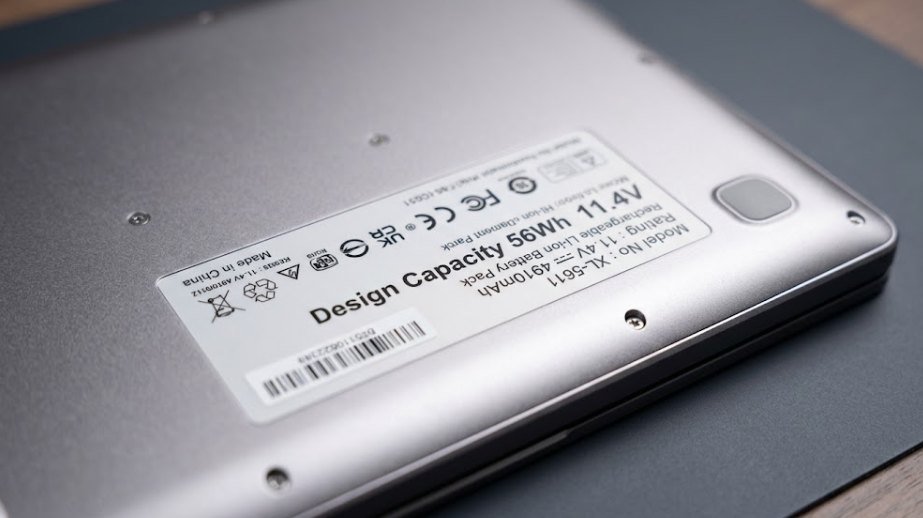
Battery Life Calculator: How Long Will 42Wh, 50Wh, 65Wh, or 100Wh Last?
Here is the whole calculator in one line: runtime in hours ≈ battery Wh ÷ average watts used. For example, a 50Wh battery on a laptop averaging 12W lasts about 4.2 hours. The table below applies that formula to common battery sizes.
| Battery size | Light use (~8W) | Everyday (~15W) | Heavy (~30W) | Gaming (~60W) |
|---|---|---|---|---|
| 42Wh | ~5.3 hours | ~2.8 hours | ~1.4 hours | ~0.7 hours |
| 50Wh | ~6.3 hours | ~3.3 hours | ~1.7 hours | ~0.8 hours |
| 65Wh | ~8.1 hours | ~4.3 hours | ~2.2 hours | ~1.1 hours |
| 100Wh | ~12.5 hours | ~6.7 hours | ~3.3 hours | ~1.7 hours |
These wattages are planning estimates, not measurements of your machine. Your laptop may draw less or more depending on its processor, screen, and settings, and real runtime is usually slightly lower than the math because the laptop shuts down before the battery is truly empty. To find your own average draw, run the test in the section below.
Is 65W too much for a laptop?
No, because 65W usually describes the charger, not the battery. A 65W adapter delivers up to 65 watts of power while you’re plugged in, and it does not mean the laptop burns 65 watts all the time. Mixing up charger watts and battery watt-hours is one of the most common mistakes. Many modern laptops charge over USB-C, so our computer ports guide explains which USB-C ports can handle laptop charging.
What’s Good Battery Life for a Laptop? (Is 2 Hours Enough?)
“Good” depends on the type of laptop and how you use it. Here is a practical scale for real-world mixed use, not lab numbers.
| Real-world hours | Rating | Who it suits |
|---|---|---|
| Under 4 | Weak | Gaming or workstation laptops that stay plugged in |
| 4 to 6 | Basic | Mostly desk use with an outlet nearby |
| 6 to 10 | Good | School, office work, general travel |
| 10 or more | Excellent | All-day use away from outlets |
So, is 2 hours of battery life enough? It depends on what the laptop is doing.
2 hours is acceptable when
- You’re gaming or rendering on a performance laptop
- The laptop is mostly used at a desk
- The battery is there only as a backup during power outages
2 hours is a problem when
- You’re only browsing, writing, or watching video
- The laptop used to last much longer
- You commute, travel, or study away from outlets
How to Run Your Own Real-World Battery Test, Step by Step
A health report tells you how much charge the battery can still hold. Only a controlled discharge tells you how long it actually lasts under your workload. Think of it as a dress rehearsal you run on your own laptop.
- Charge to 100% and let the laptop settle for a few minutes before you unplug.
- Fix your settings. Pick one brightness level (around 50% is a good start), keep Wi-Fi on, and note your power mode.
- Unplug and work normally. Use your usual mix of browsing, documents, and video, or loop one streaming video for a light-use baseline.
- Log the time and battery percentage every 30 minutes.
- Stop around 20%. Percentage readings are less reliable near empty, and running the battery flat on purpose adds unnecessary wear.
- Do the math. Hours ≈ 100 ÷ (percent lost per hour). If you drop from 100% to 70% in 1.5 hours, that is 20% per hour, so about 5 hours in total.
Make the result trustworthy: repeat the test two or three times and average the results. Then run the same test every few months. One reading shows today’s runtime, while a series shows how fast your battery is aging.
Best Laptop Battery Test Tools and Software
You can do a lot with built-in tools, and a few free utilities add detail. Download third-party tools only from the developer’s official site.
| Tool | Platform | Best for |
|---|---|---|
Windows battery report (powercfg) | Windows | Design vs full-charge capacity and usage history, with nothing to install |
| BatteryInfoView | Windows | Quick battery details and logging in one small window |
| HWiNFO | Windows | Live sensors, including battery wear and discharge rate |
| coconutBattery | Mac | Design capacity, current capacity, and cycle count in one view |
| Manufacturer diagnostics (Dell SupportAssist, Lenovo Vantage, HP PC Hardware Diagnostics, MyASUS) | Brand-specific | Official pass/fail battery checks that can support a warranty claim |
| Task Manager / Activity Monitor | Windows / Mac | Finding which apps drain power |
You may also see advice to test a laptop battery with a multimeter. We don’t recommend it. It means opening the laptop, and a voltage reading alone doesn’t tell you how much capacity the battery has left. Use the tools above instead.
How to Check Laptop Battery Health (Windows 10 & 11, Mac)
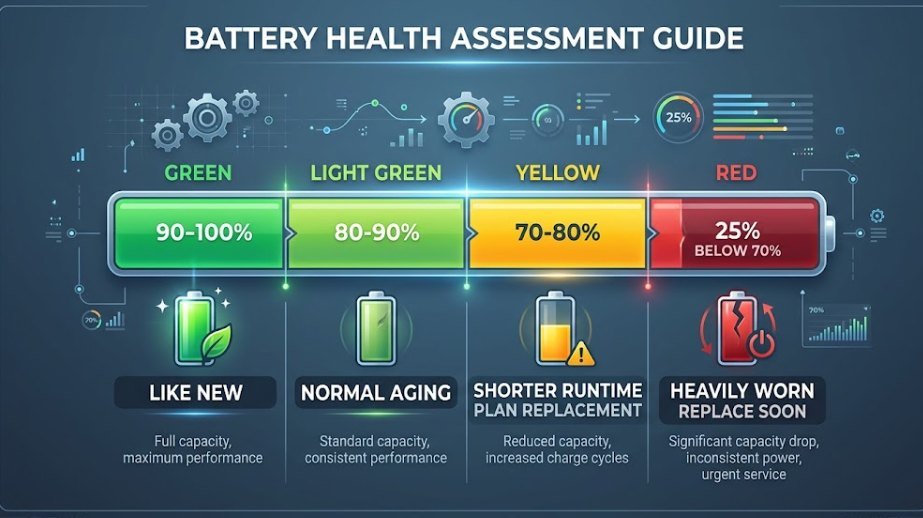
Battery health compares how much charge the battery holds now with how much it held when new. On Windows, take Full Charge Capacity from the battery report and divide it by Design Capacity. For example, 32,000 mWh ÷ 40,000 mWh = 80% health. On a Mac, Battery Health in System Settings shows maximum capacity as a percentage for you.
| Capacity | What it means | What to do |
|---|---|---|
| 90 to 100% | Like new | Nothing |
| 80 to 90% | Normal aging, mild runtime loss | Nothing |
| 70 to 80% | Noticeably shorter runtime | Start planning a replacement |
| Below 70% | Heavily worn | Replace the battery soon |
Cycle count is a weaker signal than most people think. Apple’s battery cycle guidance describes the rated cycle count as a design target for retaining up to 80% of original capacity, not a countdown to failure. Heat and charging habits can make two laptops at the same cycle count read very differently. The Windows report may show a cycle count too, though many laptops leave that field blank, so treat the capacity percentage as your main signal.
What Drains a Laptop Battery the Most?
Some habits and settings cost far more battery than others. Screen brightness is usually the biggest single lever, and the table ranks the rest.
| Drain | Impact | Quick fix |
|---|---|---|
| High screen brightness | High | Lower it to the lowest comfortable level |
| Dedicated graphics card | High | Use integrated graphics when you’re not gaming or editing (see CPU vs GPU) |
| Sustained heavy processing | High | Close heavy apps, and use a power-saving mode on battery |
| High refresh-rate display | Medium | Switch to 60Hz on battery if your laptop allows it |
| Background apps and tabs | Medium | Close what you’re not using |
| Wi-Fi, Bluetooth, and USB accessories | Low to medium | Turn off or unplug what you don’t need |
| Heat and extreme cold | Long-term | Keep airflow clear, and avoid hot cars or freezing bags |
Over the long term, the biggest killer of battery lifespan (as opposed to a single charge) is heat, followed by keeping the battery at a very high charge for long periods. Fast-draining battery on a laptop that used to be fine? See our common computer problems guide for a step-by-step troubleshooting routine.
The 40-80 Rule: Does It Really Extend Battery Life?
The 40-80 rule says to keep your battery between about 40% and 80% charge instead of cycling from 0% to 100%. The idea comes from how lithium-ion cells age: they are under the most stress when very full or very empty. Battery University’s guide to prolonging lithium-based batteries explains why partial charging is gentler on the cell.
The verdict: it works, but you don’t need to follow it every day. The benefit is real over several years, and it matters most for laptops that sit plugged in at a desk. You lose some usable hours per charge, so there is a trade-off.
Worth following when
- The laptop is plugged in most of the day
- You want to keep the laptop for many years
- Your laptop has a built-in charge limit setting
Fine to ignore when
- You’re traveling and need every hour
- You’ll replace the laptop within a couple of years
- You’d have to babysit the charger manually
Dell, HP, Lenovo & ASUS: Battery Care Settings You Should Turn On
You don’t have to follow the 40-80 rule by hand. Most major brands ship a tool that limits or manages charging for you. Names and options vary by model and software version, and some settings live in the BIOS, so check what your own laptop offers.
| Brand | Where to look | What it does |
|---|---|---|
| Dell | Dell Power Manager (battery settings) | Offers charging modes that favor battery lifespan, such as an option for mostly-plugged-in use |
| Lenovo | Lenovo Vantage | Includes a conservation mode that caps the charge level |
| HP | HP Support Assistant or BIOS (Battery Health Manager) | Reduces time spent at full charge to slow wear |
| ASUS | MyASUS (Battery Health Charging) | Lets you choose between full capacity and longer-lifespan charge limits |
| Mac | System Settings → Battery | Optimized Battery Charging learns your routine to limit time at full charge |
Quick tip: if you use your laptop plugged in 90% of the time, turn on the charge-limit mode. If you’re about to travel, switch it back to full charge the day before.
How to Tell If Your Laptop Battery Is Going Bad
Batteries rarely fail overnight. Watch for these warning signs:
- Much shorter runtime than it had a year ago, with the same habits
- Sudden shutdowns at 20% to 50% charge
- Percentage jumps, such as falling from 40% to 10% in minutes
- Health below roughly 70 to 80% in the battery report
- A service or “replace battery” warning from Windows or your maker’s tool
- Unusual heat, or a battery that won’t charge past a certain level
Safety warning (swollen batteries): if the case bulges, the trackpad lifts, the keyboard rises, or the laptop no longer sits flat, stop using and charging it right away. Do not press on, puncture, or try to open the battery. Take the laptop to a qualified repair service, and recycle old batteries at a proper collection point rather than in household trash.
What about “resetting” the battery? If the percentage reading is erratic but the health looks fine, the battery gauge may be out of sync. Try a restart, install the latest BIOS or firmware update, and run your manufacturer’s battery calibration or diagnostic tool before assuming the battery is dead. Avoid fully draining the battery as a routine habit.
Is Replacing a Laptop Battery Worth It?
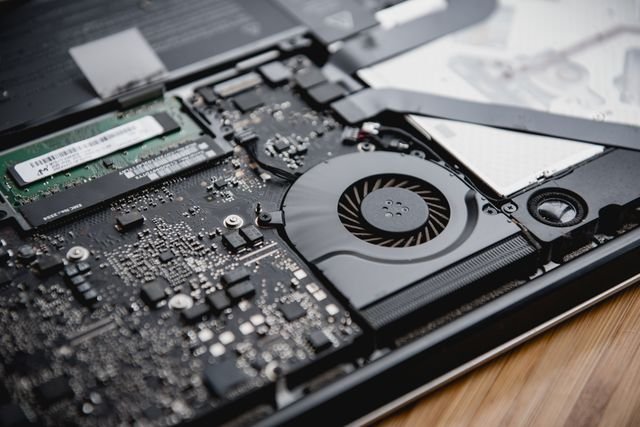
Often, yes, if the rest of the laptop is still in good shape. A new battery can bring back most of the original runtime for much less than a new laptop. The decision comes down to the laptop’s age, how hard the battery is to replace, and what it will cost.
Replace the battery when
- The laptop is fairly new and still fast enough for your work
- The battery is accessible or the maker offers an official service
- The cost is a small share of a comparable new laptop
Upgrade instead when
- The laptop is old and slow in other ways too
- The battery is glued in, and repair costs approach the laptop’s value
- It never leaves your desk, so a desktop may suit you better (see laptop vs desktop)
Whichever route you choose, use a battery from the manufacturer or a reputable supplier. Very cheap unbranded batteries are not worth the safety risk. Not sure what kind of machine suits you next? Our guide to types of computers compares laptops, desktops, mini PCs, and more.
How to Extend Your Laptop’s Battery Life
You don’t need a new laptop to get more hours. These habits make the biggest difference:
- Lower the brightness. It’s usually the single biggest saving.
- Turn on battery saver or your OS’s power-saving mode.
- Close unused apps and tabs that keep the processor busy.
- Drop to 60Hz on battery if you have a high refresh-rate screen.
- Unplug accessories you aren’t using, and switch off the keyboard backlight.
- Keep it cool. Avoid soft surfaces that block the vents.
- Use your maker’s charge-limit setting if you’re mostly plugged in.
Frequently Asked Questions
Is 2 hours good battery life for a laptop?
Only for a gaming or workstation laptop under heavy load. For everyday browsing, writing, and video, 2 hours is poor, and it may mean the battery is worn or something is draining it. A good everyday laptop manages 6 to 10 hours of real-world use.
How long will a battery last in a laptop?
It depends on what you mean. On a single charge, anywhere from a couple of hours to a full day. Over its lifespan, most laptop batteries stay useful for roughly two to four years of regular use before capacity noticeably declines, though heat and charging habits can shorten or extend that.
How long should 100% battery last on a laptop?
For a healthy mainstream laptop, 6 to 10 hours of mixed real-world use is a reasonable expectation. Ultra-efficient laptops can go beyond 10 hours, while gaming laptops often last 1 to 3 hours under load. Use the calculator table above to estimate yours.
How long does a 41Wh, 42Wh, or 50Wh laptop battery last?
At an everyday draw of around 15W, a 41Wh or 42Wh battery lasts roughly 2.7 to 2.8 hours and a 50Wh battery roughly 3.3 hours. On light use at around 8W, those figures rise to roughly 5 to 6 hours. The exact number depends on your laptop’s efficiency, so run your own test.
Is 65W too much for a laptop?
No. A 65W rating normally describes the charger’s maximum output, not the power your laptop uses constantly. Using a charger with the right wattage for your laptop is fine, and the laptop only draws what it needs. See our computer ports guide for USB-C charging details.
How many watt-hours is a normal laptop battery?
Most laptops have batteries between about 40Wh and 100Wh. Thin-and-light laptops are usually at the lower end, and large gaming laptops sit near the 100Wh limit that airlines allow without special approval.
How can I test the battery performance of my laptop?
Generate a battery report with powercfg /batteryreport on Windows, or open Battery Health in System Settings on a Mac, to check capacity. Then run a controlled discharge test with fixed brightness and a steady workload to measure real runtime. Both steps are covered above.
What kills a laptop battery the most?
Heat is the biggest long-term enemy, especially when you run heavy workloads on a soft surface that blocks airflow. Keeping the battery at a constant 100% while the laptop runs hot, and regularly draining it to empty, also speed up wear.
Is it bad to leave my laptop plugged in all the time?
Modern laptops stop charging at 100% and manage power intelligently, so it isn’t the problem it once was. The bigger risk is heat. If your laptop offers a charge-limit mode, turning it on is a simple way to reduce wear on a mostly-plugged-in machine.
Is replacing a laptop battery worth it?
Usually, if the laptop is otherwise healthy and the battery is easy to replace at a sensible price. If the laptop is old, slow, or has a glued-in battery with an expensive repair, putting that money toward a newer laptop may be the better value.
Final Thoughts
The advertised battery life on the box is a best-case number, while watt-hours and your own test tell the real story. Find your Wh, run the calculator, take ten minutes to generate a battery report, and then run a real-world discharge test every few months. If something looks off, work through our common computer problems guide before you spend money on a replacement.