SSD vs HDD vs NVMe is the choice that decides how fast your laptop starts, how quickly apps open, and how much you can keep on it before it fills up. This guide explains the differences in plain English, compares them with real numbers, and helps you pick the right type and size without overpaying.
The short answer on drive type
Choose an SSD. For most laptops, an NVMe SSD gives the best mix of speed, size, and price. An HDD only makes sense as cheap secondary storage.
The short answer on size
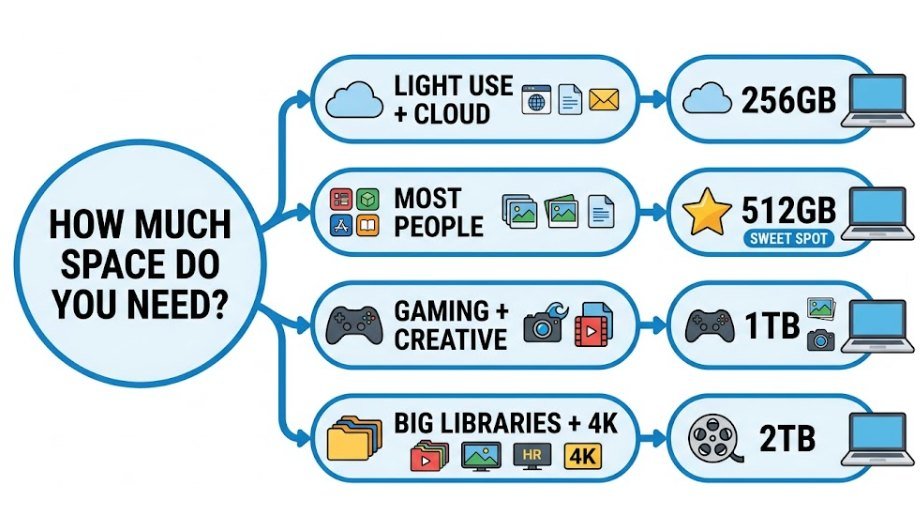
512GB is the sweet spot for most people. Go to 1TB if you game, edit video, or keep large files on the laptop. Choose 256GB only for light use with cloud storage.
Storage is one of the most overlooked specs when buying a laptop, yet it affects day-to-day speed more than most people expect. A laptop with a fast processor and an old hard drive can feel slower than a modest laptop with a good SSD. If you’re new to how the parts of a computer fit together, our beginner’s guide on how computers work is a good place to start. The NVM Express organization publishes the standard behind NVMe drives if you want to go deeper.
What Is Laptop Storage? (And How Is It Different From RAM?)
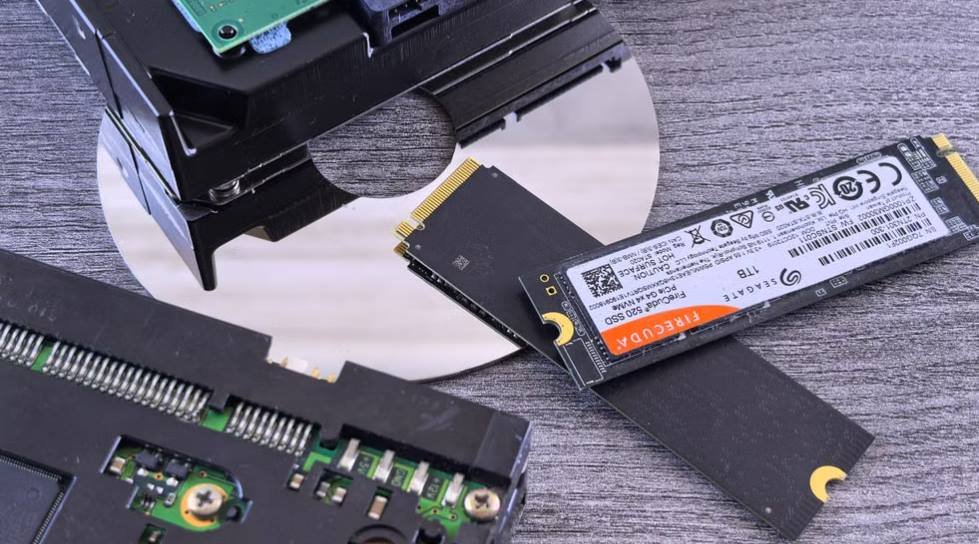
Laptop storage is the permanent memory where your operating system, apps, games, photos, and documents live. Unlike RAM, it keeps your data when the laptop is switched off. People often call it the “hard drive,” even when the laptop actually has an SSD.
RAM is the short-term workspace your laptop uses for whatever you’re doing right now. Storage is where everything is kept for the long term. They are measured in the same units (GB), which is why spec sheets confuse so many buyers: a listing that says “16GB / 512GB” means 16GB of RAM and 512GB of storage. Our guide on how much RAM you need covers the memory side in detail.
Easy way to remember it: Storage is the filing cabinet and RAM is your desk. A bigger cabinet holds more files, while a bigger desk lets you work on more things at once. A bigger cabinet will not make your desk any larger.
HDD vs SSD vs NVMe: What’s the Difference?
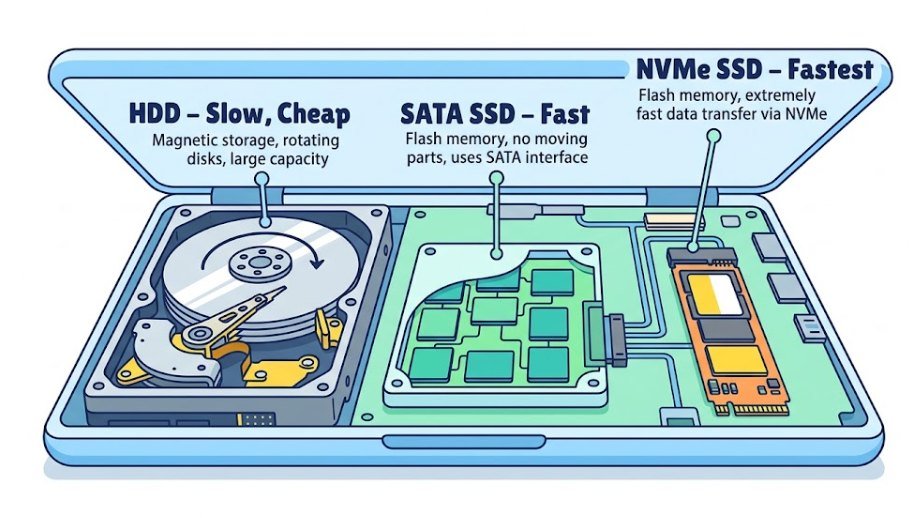
A hard disk drive (HDD) stores data on spinning magnetic platters read by a moving arm, a bit like a record player. A solid-state drive (SSD) stores data on flash memory chips with no moving parts, which makes it faster, quieter, and tougher.
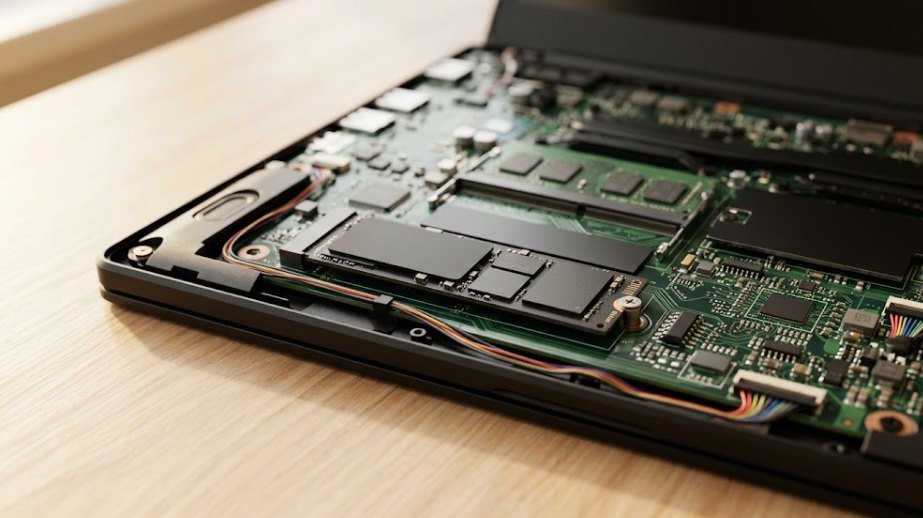
NVMe is where people get confused. NVMe is not a different kind of storage. It is a faster way for an SSD to communicate with your laptop, using the same high-speed PCIe connection as other core components. So every NVMe drive is an SSD, but not every SSD is NVMe. Older SATA SSDs use a slower connection designed in the hard-drive era.
| Type | How it works | Best for |
|---|---|---|
| HDD | Spinning magnetic platters and a moving read/write arm | Cheap bulk storage, backups, archives |
| SATA SSD | Flash memory over the older SATA connection | Budget laptops, upgrading an old laptop |
| NVMe SSD | Flash memory over fast PCIe lanes, usually in a small M.2 slot | Most modern laptops, gaming, creative work |
Don’t mix up M.2 and NVMe: M.2 is a physical shape, not a speed rating. An M.2 drive can be SATA (slower) or NVMe (faster), so always check the protocol, not just the shape. Some budget laptops and Chromebooks also use eMMC, a slow type of flash that is soldered to the motherboard and cannot be upgraded.
SSD vs HDD vs NVMe: Speed, Lifespan, Durability, and Price Compared
Here is how the three compare on the things that matter most. Speeds are typical sequential read figures, and real-world results vary by model.
| Feature | HDD | SATA SSD | NVMe SSD |
|---|---|---|---|
| Typical read speed | About 80–160 MB/s | Up to about 550 MB/s | About 3,500 to 7,000+ MB/s |
| Everyday feel | Slow to boot and open apps | Fast | Very fast |
| Durability | Moving parts, sensitive to drops and bumps | No moving parts | No moving parts |
| Noise | Audible spinning and clicking | Silent | Silent |
| Heat and power | Higher idle power draw because the platters keep spinning | Low | Low at idle, can draw more power and run hot under heavy load |
| Price per GB | Lowest | Middle | Middle to highest |
| Common laptop sizes | 500GB to 2TB | 256GB to 4TB | 256GB to 4TB |
| Wear mechanism | Mechanical wear over time | Flash wear from total data written | Flash wear from total data written |
On lifespan, the numbers surprise most people. SSDs are rated in TBW (terabytes written), and a typical 1TB consumer SSD is rated for several hundred TBW. If you write 50GB every single day, that is about 18TB a year, so a drive rated for 600TBW would take over 30 years to reach its limit. Normal laptop use will almost never wear out a decent SSD before you replace the laptop.
Hard drives fail for a different reason: moving parts wear out and don’t like being knocked around. Failure rates vary by model, and Backblaze publishes real-world drive failure data if you want to see how different drives hold up. Prices change constantly, so check the current price per GB before you buy rather than trusting a figure in an article. The gap between HDDs and SSDs is narrower than it used to be, but HDDs are still cheaper per terabyte.
Is It Better to Get an SSD or HDD for a Laptop?
For the main drive in a laptop, an SSD is the better choice in almost every case. Laptops get carried, bumped, and dropped into bags, which is hard on a spinning hard drive. They also run on battery, and SSDs use less power and make no noise.
Choose an SSD if you want
- Fast startup: Boot, wake from sleep, and open apps in seconds.
- Portability: No moving parts means better survival in a backpack.
- Better battery life: Lower power draw and no spinning platters.
- Quiet operation: No clicking, whirring, or vibration from spinning platters.
An HDD only makes sense if
- You need huge, cheap capacity: Multiple terabytes for the lowest price.
- It’s secondary storage: Backups, archives, and old media that you rarely open.
Desktops are a different story, because they have room for both a fast SSD and a large HDD. If you’re weighing the two types of machine, our laptop vs desktop guide explains how storage flexibility compares.
What Are the Disadvantages of an SSD?
SSDs win on almost everything, but they are not perfect. Here are the real downsides to know about before you buy:
- Higher price per GB. You pay more for the same capacity than with an HDD, especially at 2TB and above.
- Slower when nearly full. An SSD performs best with 10% to 20% of its space free, so a drive that is almost full can slow down.
- Limited write endurance. Flash cells wear out after enough writes. This rarely matters for normal use, but it is a real limit for heavy workloads.
- Harder data recovery. When an SSD fails, it often fails suddenly and recovering files can be difficult, so regular backups matter.
- Heat on fast NVMe drives. In thin laptops, a hot drive can slow itself down (thermal throttling) during long transfers.
- Quality varies. Very cheap, no-name SSDs can have slow sustained write speeds or weaker reliability than established brands.
Keep perspective: None of these are reasons to choose a hard drive for your main laptop storage. They are reasons to buy a reputable SSD, leave some free space, and keep backups. If your laptop feels slow, check our guide to common computer problems and how to fix them before blaming the drive.
Is an HDD Still Worth It Today?
Yes, but not as the main drive in a laptop. HDDs are still the cheapest way to store large amounts of data, which is why they are common in external backup drives, home servers, and network storage. If you have a big library of photos, videos, or old projects that you rarely open, an external HDD is a sensible, affordable home for them.
As the drive your operating system runs from, an HDD is a poor choice. Everything from startup to opening a browser feels slower. If an older laptop still uses a hard drive, swapping it for an SSD is one of the most effective upgrades you can make, often giving it a second life.
Rule of thumb: Use an SSD for things you use every day (Windows or macOS, apps, active files) and an HDD for things you want to keep but rarely touch (backups and archives).
NVMe Gen 3 vs Gen 4 vs Gen 5: Does the Speed Actually Matter?
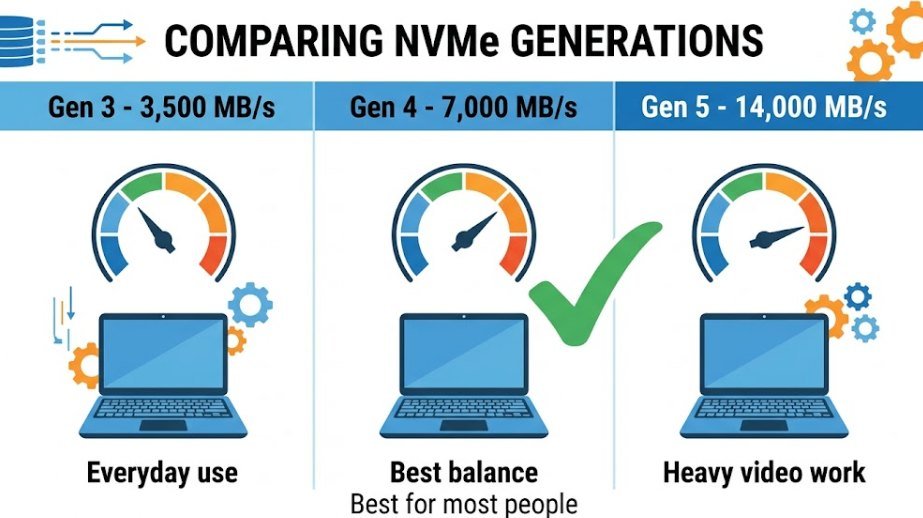
NVMe drives come in generations that correspond to the version of PCIe they use. Each generation roughly doubles the maximum speed, but that does not mean you will feel it in everyday use.
| Generation | Typical max read speed | Where you’ll find it | Real-world benefit |
|---|---|---|---|
| NVMe Gen 3 | About 3,500 MB/s | Budget and older laptops | Plenty fast for everyday use and most gaming |
| NVMe Gen 4 | About 7,000 MB/s | Most current mid-range and high-end laptops | Faster large file transfers and game loading |
| NVMe Gen 5 | About 10,000 to 14,000+ MB/s | Premium and enthusiast laptops | Mainly for heavy video work and large datasets |
For browsing, streaming, schoolwork, and office tasks, you won’t notice a difference between Gen 3 and Gen 5, because those tasks never come close to the speed limit. The faster generations help most when you are copying huge files, editing high-resolution video, or loading very large games. Even in gaming, your frame rate depends far more on your processor and graphics chip, which we compare in our CPU vs GPU guide.
Faster drives also run hotter and use more power, which can shorten battery life in a laptop. Your laptop’s slot also sets the ceiling: a Gen 5 drive in a slot that only supports Gen 4 will simply run at Gen 4 speeds. The PCI-SIG maintains the PCIe standard that these generations are based on.
Our take: A good Gen 4 drive is the best balance for most people. Choose Gen 3 to save money, and only pay extra for Gen 5 if you regularly move huge files and your laptop’s cooling can handle it.
Is a 256GB SSD Better Than a 1TB Hard Drive?
It depends on what “better” means. For speed and day-to-day responsiveness, a 256GB SSD easily beats a 1TB hard drive. For raw capacity, the 1TB drive holds four times as much. Because a laptop’s main drive runs everything, most people are happier with the faster, smaller SSD, as long as their files fit.
Keep in mind that you never get the full advertised size. A drive sold as 256GB shows roughly 238GB in Windows because of how storage is counted, and the operating system and updates take a large chunk of that. A 1TB drive shows roughly 931GB. And to answer a common question: a 1TB SSD and a 1TB HDD hold the same amount of data, but the SSD is far faster, tougher, and more expensive.
| Your situation | Better choice | Why |
|---|---|---|
| Browsing, Office, streaming, files mostly in the cloud | 256GB SSD | Speed matters more than space |
| Large local photo or video library | 512GB or 1TB SSD, plus an external drive | Fast daily drive with bulk files offloaded |
| Gaming | 1TB SSD | Modern games are very large and load faster from an SSD |
| Tight budget but lots of data | 512GB SSD plus a cheap external HDD | Speed where it counts, capacity where it’s cheapest |
Is 1TB or 2TB Overkill for a Laptop?
It depends on what you store. To judge how much you need, it helps to know what takes up space. Windows plus its updates can use 30GB to 60GB, large modern games often take 50GB to 150GB or more each, and a typical phone photo is a few megabytes, so 10,000 photos is roughly 30GB to 50GB. An hour of high-quality 4K video can run into tens of gigabytes.
| Size | Good for | Watch out for |
|---|---|---|
| 256GB | Web, school, Office, streaming with cloud storage | Fills up quickly once you add apps and updates |
| 512GB | Most people, including work and light gaming | Tight if you keep many large games or videos |
| 1TB | Gaming, photography, creative work, long-term comfort | Costs more, but rarely “wasted” |
| 2TB | Big game libraries, 4K video, developers with virtual machines | Overkill for light users |
For gamers, creators, and anyone who keeps a lot of files locally, 1TB is not overkill. It is often the comfortable choice. 2TB is overkill for most people, but it makes sense if your laptop’s storage cannot be upgraded later, because you are buying your lifetime capacity upfront. A good rule is to buy about double what you use today, so you never run the drive close to full.
Can You Add More Storage to a Laptop? (Including Why Some Can’t Be Upgraded)
Often yes, but it depends on the model. Here are the main ways to get more space:
- Replace the internal drive. Swap the existing drive for a larger one, then copy or reinstall your system.
- Add a second internal drive. Some laptops have a spare M.2 slot or a 2.5-inch bay for an extra drive.
- Use an external SSD or HDD. It plugs into a USB or Thunderbolt port. Our computer ports guide explains which port gives the best speed.
- Add a memory card. An SD or microSD card is fine for extra photos or documents, but it is slow for apps or games.
- Use cloud storage. Services that sync files online free up local space, but you need an internet connection to access files that aren’t downloaded.
Many laptops can’t be upgraded at all. Thin ultrabooks, Chromebooks, and modern Mac laptops often have storage soldered directly to the motherboard, so what you buy is what you keep. Before you buy, search your exact model number plus “storage upgrade” or look up its service manual to see whether it has an open slot. If it doesn’t, buy a larger size upfront. Our guide to types of computers shows how upgrade options differ between laptops, desktops, and mini PCs.
Before you swap a drive: Back up everything first. Check the drive type and size your laptop supports (SATA or NVMe, and the physical length), and be aware that opening the case can affect your warranty on some models.
How to Check What Storage Your Laptop Has (Windows and Mac)
You don’t need to open the laptop to find out what storage it uses. Here’s how to check on each operating system.
On Windows
- See your size and free space. Open Settings, go to System, then Storage.
- See the drive model. Press Ctrl + Shift + Esc to open Task Manager, click the Performance tab, then choose Disk. The model name appears in the top corner, and newer versions of Windows also show whether it is an SSD or HDD.
- Confirm the drive type. Search for Defragment and Optimize Drives in the Start menu. The “Media type” column shows “Solid state drive” or “Hard disk drive.”
On Mac
- Check size and free space. Click the Apple menu, open System Settings, then go to General and Storage.
- See the details. Click the Apple menu, choose About This Mac, then More Info, and look at the storage information. For full hardware details, open System Information and select Storage.
Mac laptops use SSD storage, and on modern models it is built in and can’t be upgraded later, so pick your size carefully at purchase. If your drive looks nearly full, that alone can make a laptop feel slow, so it’s worth freeing up space before you decide an upgrade is needed.
Frequently Asked Questions
How much storage is good for a laptop?
For most people, 512GB is the best balance. Choose 256GB if you mainly browse, stream, and use cloud storage, and choose 1TB or more if you game, edit photos or video, or keep lots of files on the laptop.
Is 256GB enough for a laptop?
It is enough for light use such as web browsing, school work, Office apps, and streaming, especially if you store files in the cloud. It fills up quickly if you install large apps or games, since the operating system and updates already use a big share of the drive.
Is NVMe the same as SSD?
Not exactly. NVMe is a faster way for an SSD to communicate with your laptop. Every NVMe drive is an SSD, but not every SSD is NVMe, because older SATA SSDs use a slower connection. Learn more about the standard on NVM Express.
Can I use an SSD and an HDD together in one laptop?
Only if your laptop has room for two drives, which is uncommon in modern thin models. A simpler option is an SSD inside the laptop plus an external HDD or SSD for backups and large files.
Why does my laptop show less storage than advertised?
Manufacturers count a gigabyte as one billion bytes, while Windows counts it differently, so a 256GB drive shows about 238GB. The operating system, recovery files, and pre-installed apps also use some of the space before you add anything.
Is external storage as fast as internal storage?
It can be, but only if both the drive and the port are fast enough. An external SSD on a fast USB or Thunderbolt port can feel close to internal, while an external HDD or a slow port will be much slower. Our computer ports guide explains the differences.
Do I still need backups if I have an SSD?
Yes. SSDs are reliable, but any drive can fail, and a failed SSD can be hard to recover data from. Keep important files in a second place, such as cloud storage or an external drive.
Final Thoughts
For almost everyone, the right laptop storage is an NVMe SSD, with a good Gen 4 drive being the sweet spot, in a size that leaves you room to grow. Choose 512GB for general use and 1TB if you game or create, and keep HDDs for cheap backups and archives. Before you buy, check whether the storage can be upgraded, because a soldered drive means you need to get the size right the first time.